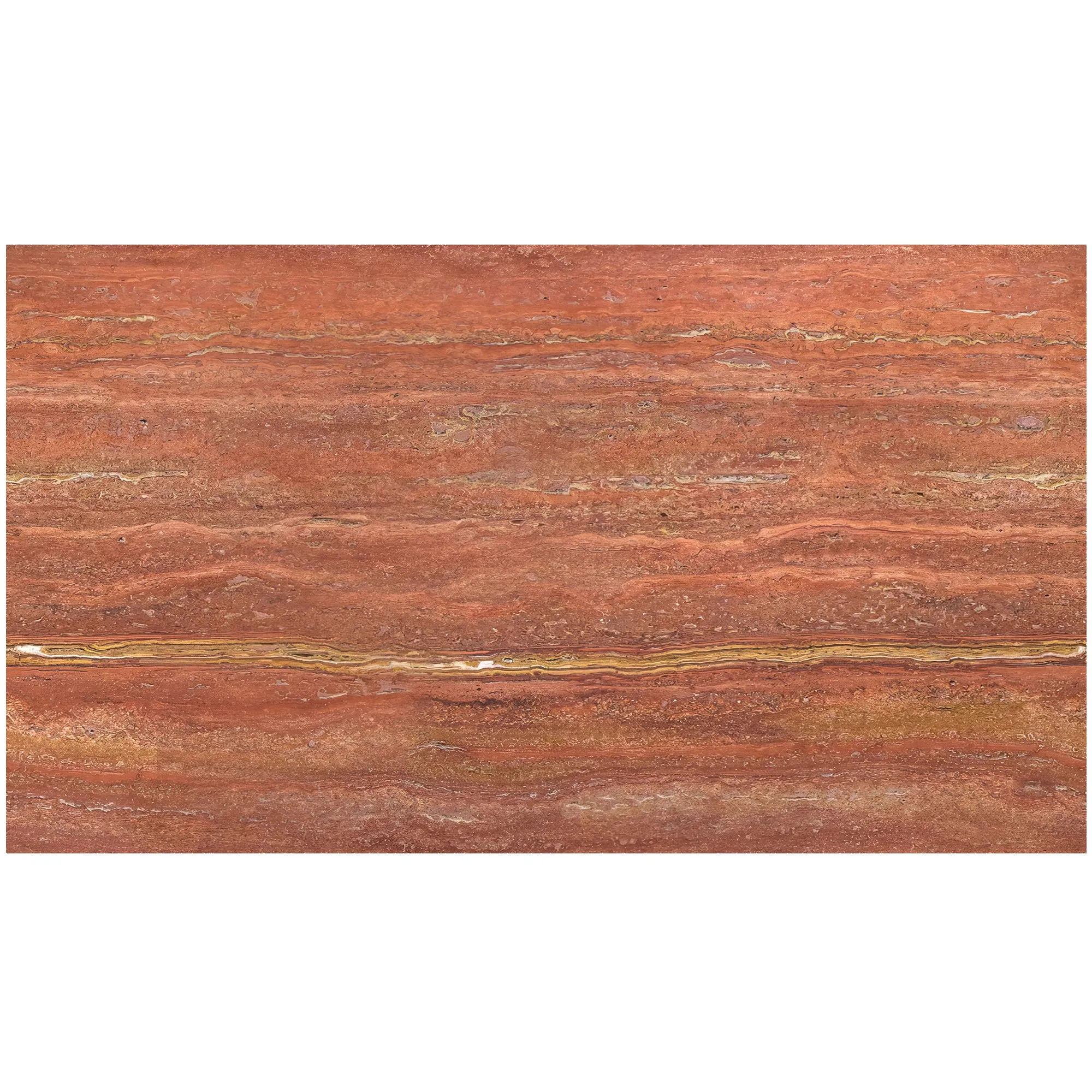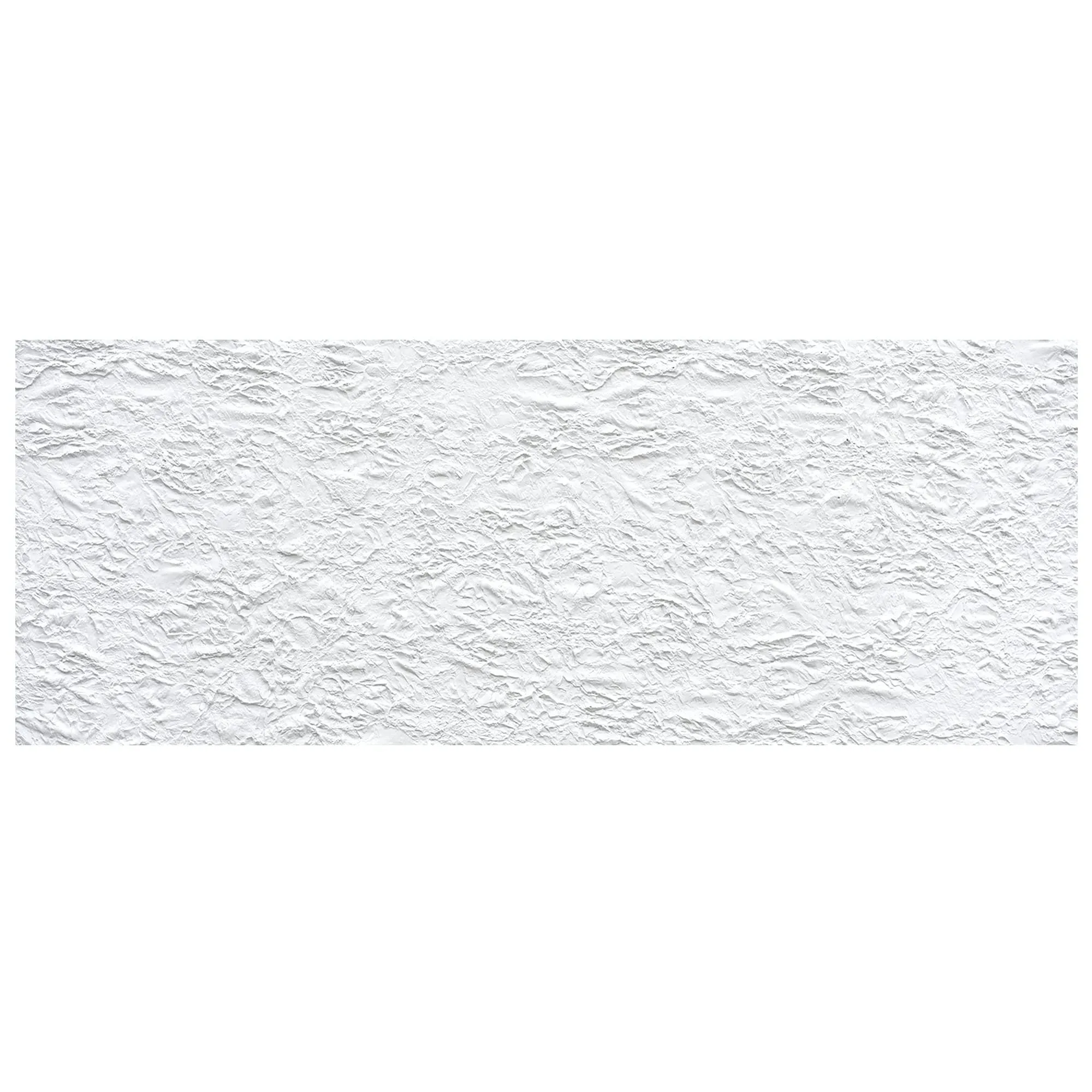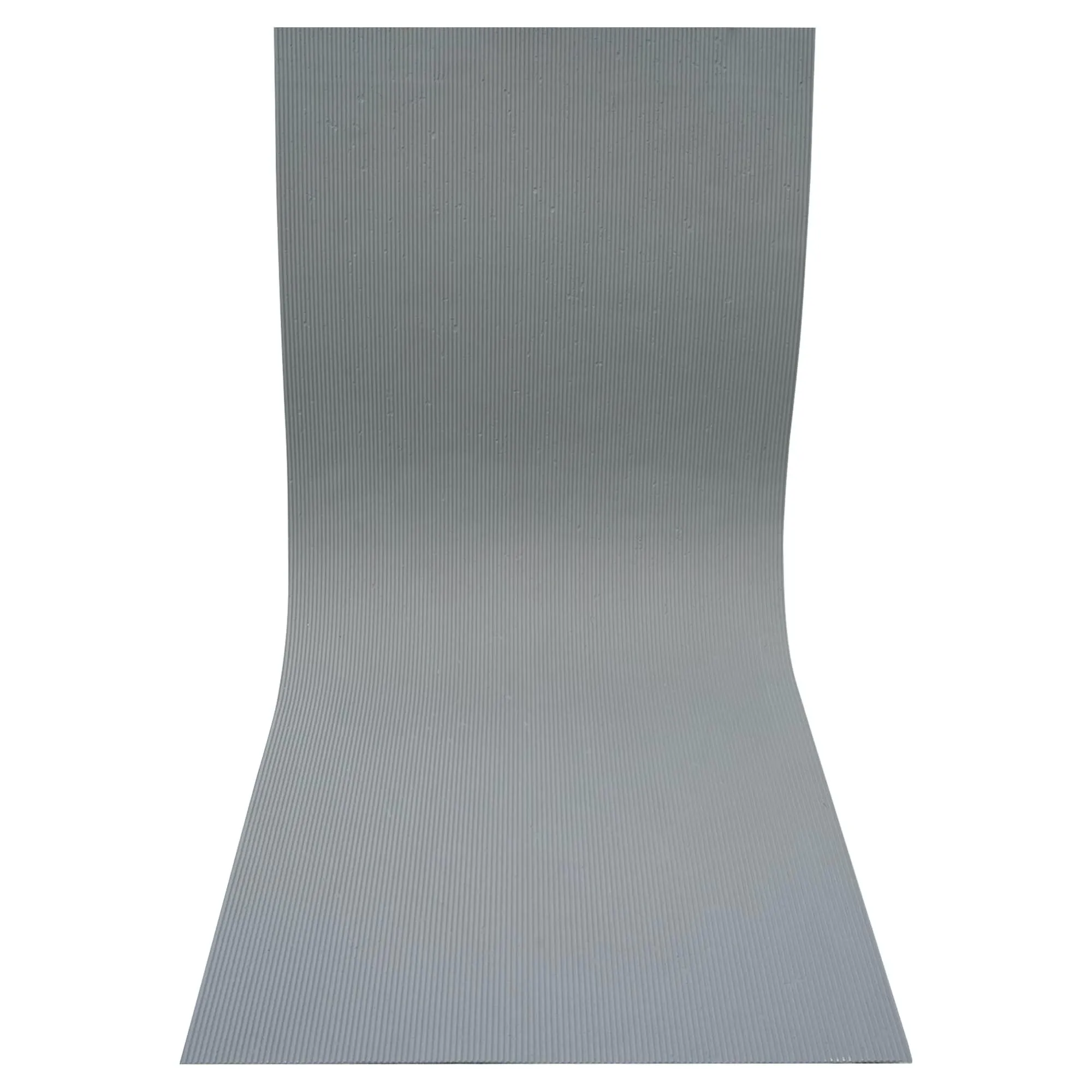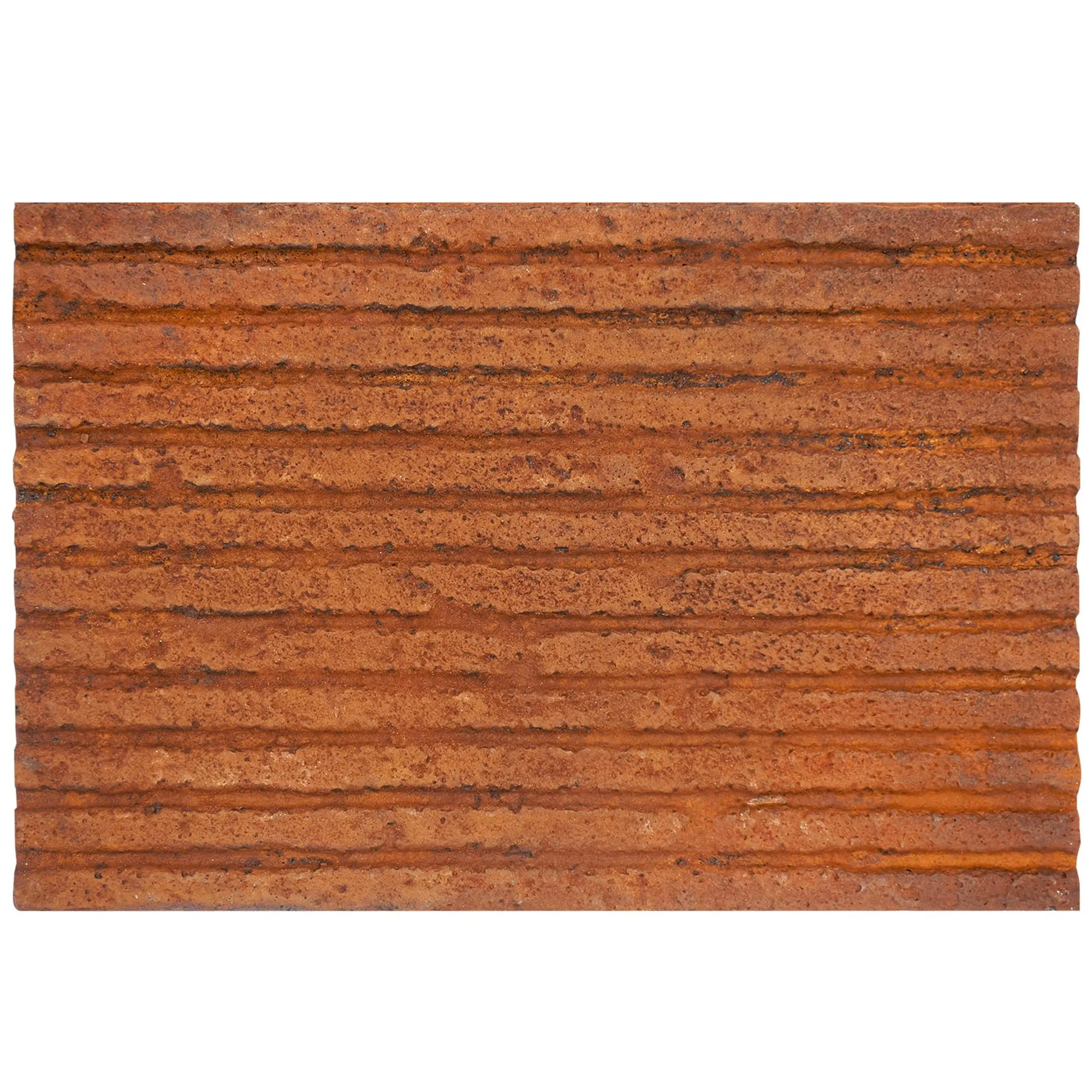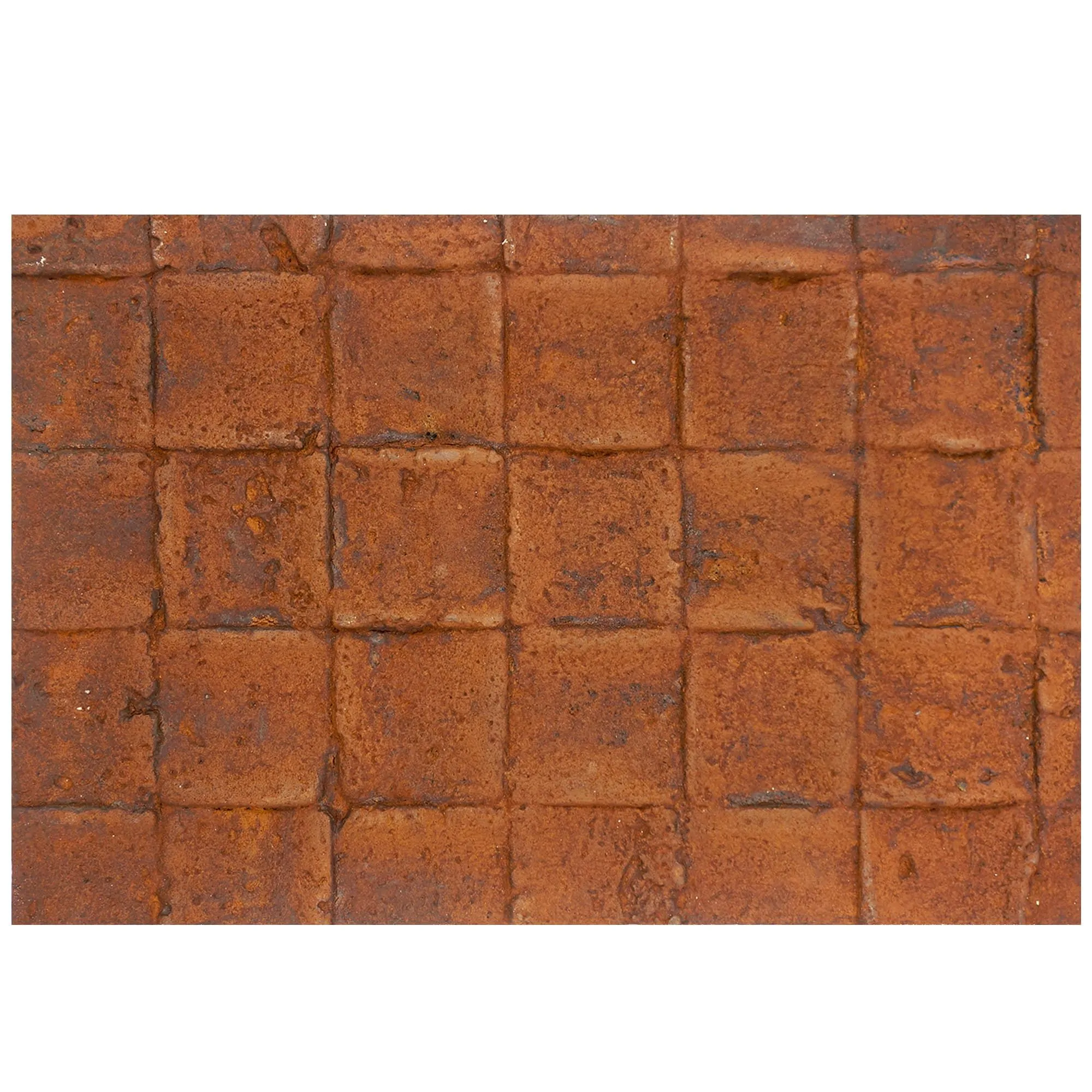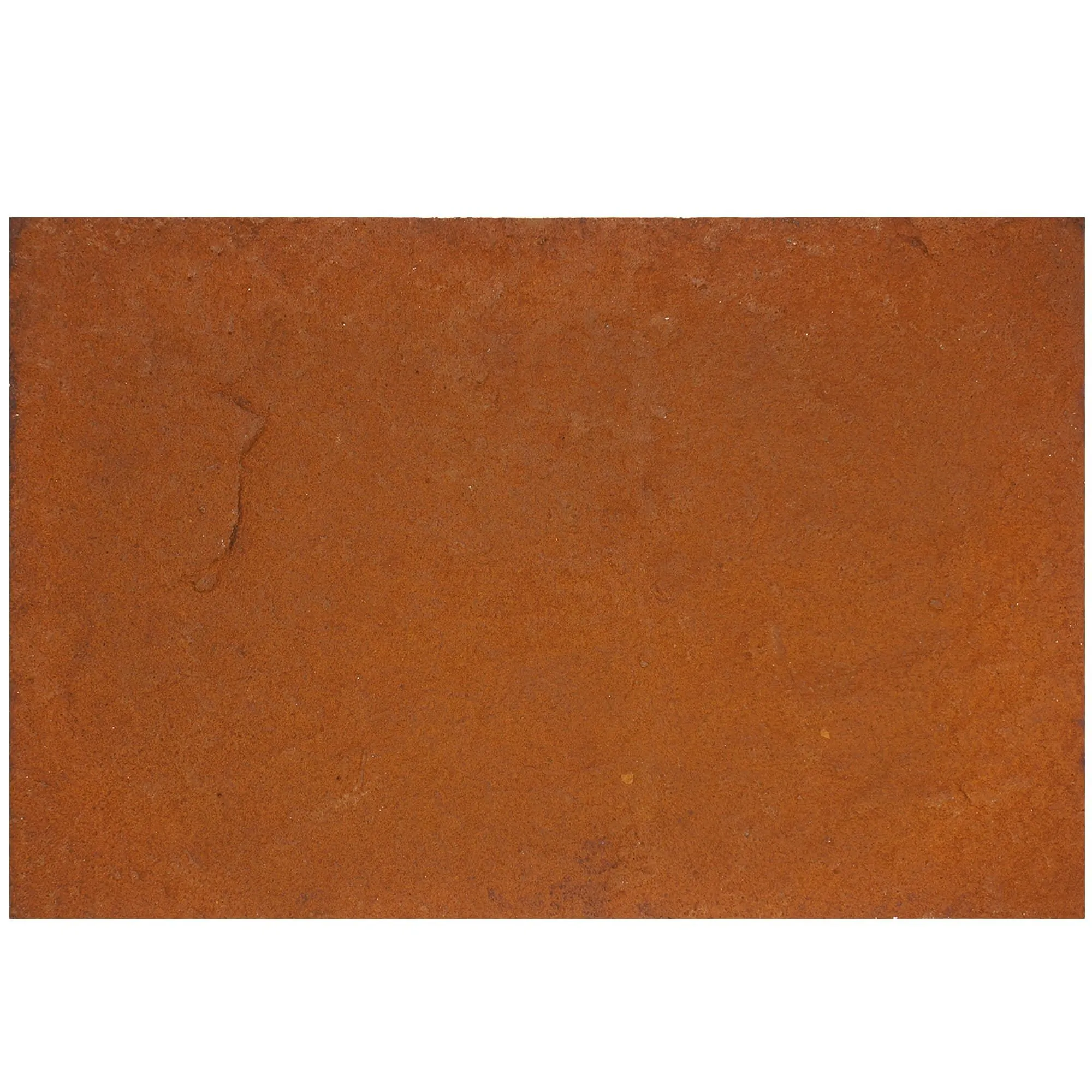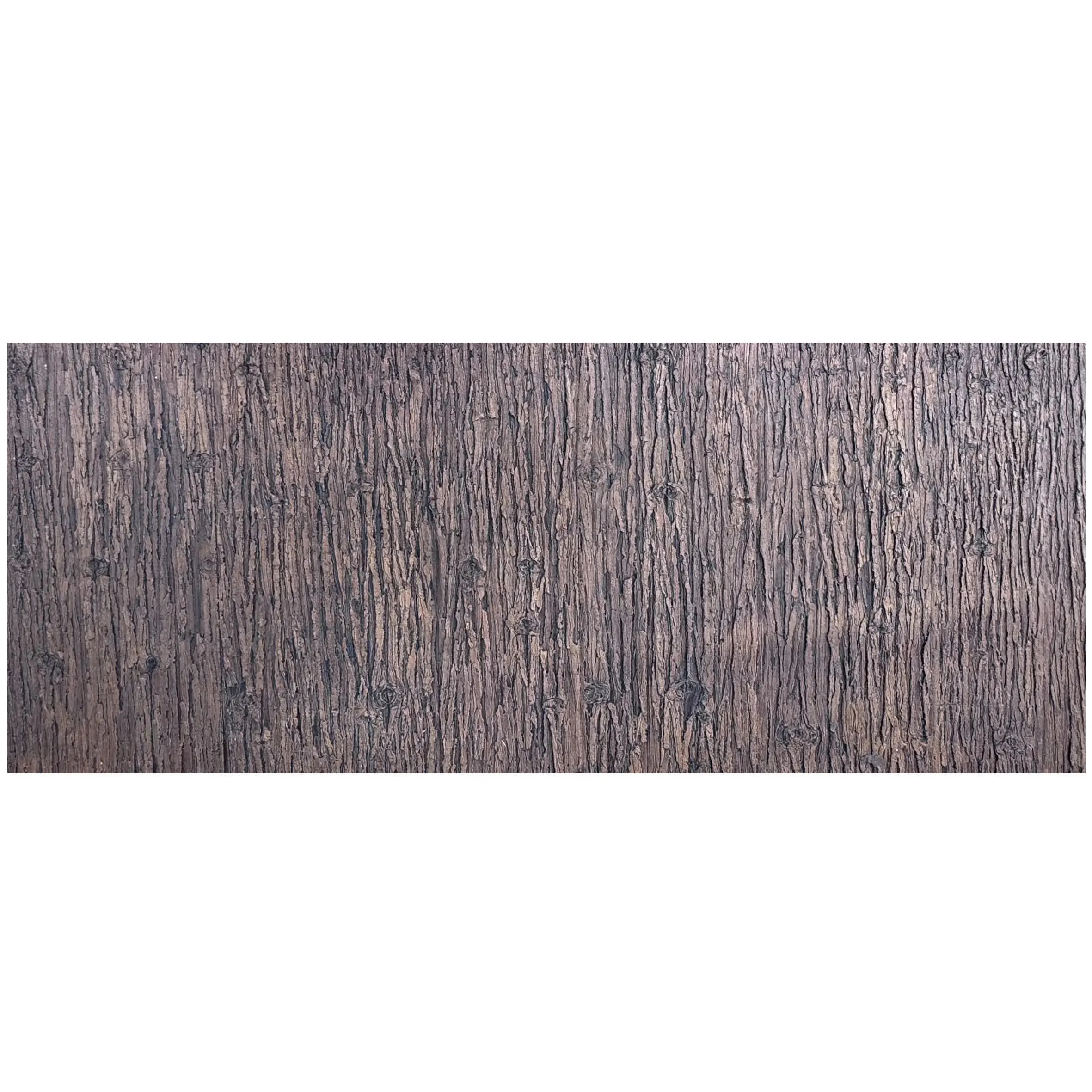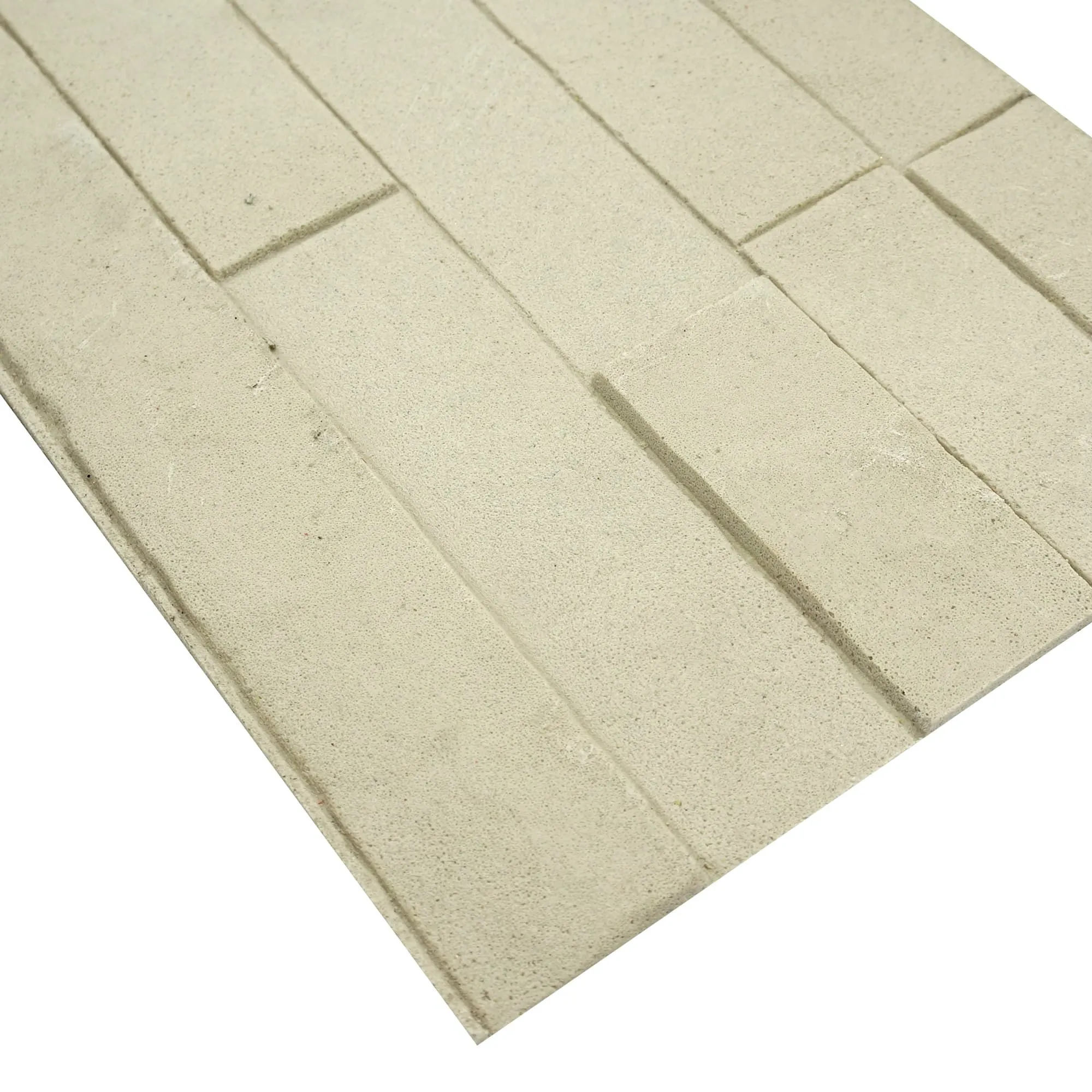
There's a moment in every designer's process when a material stops being just a swatch and starts telling a story. For me, that happened last year in a sunlit studio, holding a sample of beige rock cut stone. Its surface wasn't just "textured"—it was a narrative: tiny grooves where water might have run, flecks of mineral that caught the light like buried treasure, edges softened by what felt like decades of quiet wear. I ran a finger over it, and suddenly, I wasn't just looking at a building material. I was imagining it on a café wall, warm and inviting, or cladding a home's exterior, grounding the structure in something timeless. That's the magic of beige rock cut stone: it doesn't just cover surfaces—it transforms them into stories.
But here's the thing about stories: they need structure. And when it comes to translating that tactile, organic beauty into a functional, buildable design, CAD (Computer-Aided Design) becomes your most trusted co-author. Whether you're working on a commercial lobby, a residential feature wall, or a retail space, laying out MCM panels—especially with materials as nuanced as beige rock cut stone—requires more than just dragging and dropping rectangles. It demands precision, an eye for texture, and a deep understanding of how the material interacts with light, space, and other elements in the design.
In this guide, we're diving into the art and science of designing with beige rock cut stone, with a focus on CAD tips that will help you turn your vision into a reality. We'll explore its unique characteristics, break down key layout strategies, and even touch on how to pair it with complementary materials like the MCM big slab board series or flexible stone. By the end, you'll not only have the technical know-how to layout panels efficiently but also the insight to make sure every line in your CAD file honors the material's inherent warmth.
Before we fire up the CAD software, let's take a step back and really get to know our star material. Beige rock cut stone isn't a "one-size-fits-all" product—it's a family of textures, each with its own personality. Some variants have deep, chiseled grooves that catch shadows like a painter's brushstrokes; others are smoother, with subtle veining that mimics the flow of ancient rivers. The "rock cut" process itself is what gives it that authentic, handcrafted feel—no two panels are exactly alike, which is part of its charm, but also something to account for in your design.
One of the first lessons I learned when working with this material is that scale is everything. A small sample in your hand might feel delicate, but when blown up to cover a 10-foot wall, those same textures can read as bold or understated, depending on how you lay them out. For example, a panel with large, irregular grooves might overwhelm a narrow hallway but become a stunning focal point in a spacious lobby. CAD lets you play with that scale before a single stone is cut, saving you from costly mistakes later.
Another key consideration is weight and flexibility. Unlike lightweight options like foamed aluminium alloy board, beige rock cut stone has substance—it's durable, weather-resistant, and built to last. But that durability comes with a trade-off: it's not as flexible as, say, flexible stone, which means it's best suited for flat or gently curved surfaces. This is critical in CAD layout—you'll need to avoid overly complex geometries unless you're pairing it with more malleable materials (more on that later).
To truly appreciate beige rock cut stone, it helps to see how it stacks up against other popular MCM materials. Let's break it down in a table:
| Material | Texture Profile | Weight (per sq.m) | Best For | Design Vibe |
|---|---|---|---|---|
| Beige Rock Cut Stone | Organic, chiseled grooves; subtle veining; matte finish | 18-22 kg | Feature walls, exterior cladding, fireplace surrounds | Warm, earthy, timeless |
| MCM Big Slab Board Series | Smooth, uniform surface; large-format (up to 1200x2400mm) | 12-15 kg | Open floor plans, countertops, high-traffic areas | Modern, sleek, minimalist |
| Flexible Stone | Thin, lightweight; can mimic stone, wood, or metal textures | 4-6 kg | Curved surfaces, furniture accents, ceiling panels | Versatile, adaptive, creative |
| Fair-Faced Concrete | Raw, industrial; visible aggregates and formwork lines | 20-25 kg | Loft spaces, outdoor patios, modern exteriors | Edgy, contemporary, utilitarian |
Notice how beige rock cut stone balances weight and texture—heavier than flexible stone but with more character than fair-faced concrete. This sweet spot makes it incredibly versatile, but it also means your CAD layout needs to account for both its physical properties (like load-bearing capacity) and its aesthetic impact.
For example, if you're using beige rock cut stone on an exterior wall, CAD can help you calculate the total weight per panel and ensure the structure can support it. If you're pairing it with the MCM big slab board series for a lobby (big slabs for the main wall, rock cut stone for the accent panels), you'll want to use CAD to adjust the scale of each material so neither one overwhelms the other. It's not just about making sure the numbers add up—it's about making sure the materials "talk" to each other in harmony.
Okay, let's get practical. You've got your project brief, you've selected beige rock cut stone as your primary material, and now it's time to open up AutoCAD, Revit, or whatever software you swear by. Where do you start? The answer, almost always, is the grid.
Think of your CAD workspace as a canvas, and the grid as your sketch lines. A well-planned grid ensures that your panels align neatly, minimizes waste (no more random 6-inch scraps left on the cutting room floor), and creates a sense of order that lets the stone's organic texture shine. Here's how to build it:
MCM panels, including beige rock cut stone, come in standard sizes—typically 600x600mm, 600x1200mm, or 1200x2400mm (the latter being part of the MCM big slab board series). Before you start drawing, confirm the exact dimensions with your supplier. This might seem like a no-brainer, but I've seen too many designs derailed by assuming a panel size only to find out the actual product is 10mm narrower. That 10mm adds up when you're laying out 50 panels!
Once you have the dimensions, set your CAD grid to match. For example, if you're using 600x1200mm panels, set your grid spacing to 600mm horizontally and 1200mm vertically. This way, when you start placing panels, they'll snap to the grid, and you'll immediately see if there's a gap or overlap that needs adjusting.
Joints—the spaces between panels—are another critical detail that's easy to overlook in CAD. Beige rock cut stone panels need a small gap (usually 3-5mm) to allow for expansion, contraction, and mortar application. But joints aren't just functional; they're design elements. A narrower joint (3mm) creates a more seamless look, letting the stone's texture take center stage, while a wider joint (5mm) adds rhythm and can help break up large surfaces into more digestible sections.
In CAD, I recommend drawing joints as separate lines, not just leaving empty space. This makes it easier to visualize the final look and ensures your contractor knows exactly how much mortar to order. Pro tip: Use a different layer color for joints (maybe light gray) so they stand out from the panels themselves. It'll save you from squinting at the screen trying to tell where one panel ends and the next begins.
Nothing throws off a panel layout faster than an unexpected window or electrical outlet. Before you dive into placing panels, import your architectural base plan into CAD and mark all obstacles: doors, windows, light switches, vents, even structural columns. Then, treat these as "fixed points" and design your panel layout around them.
For example, if there's a window in the middle of your feature wall, you might want to center a full panel on either side of it to create symmetry. Or, if there's a light switch, adjust the panel above it so the switch isn't awkwardly cutting through a groove in the stone. This might mean trimming a panel or two, but with CAD, you can preview the cut and decide if it's worth it—or if shifting the entire grid by 100mm would result in cleaner lines.
I once worked on a project where the initial layout had a light switch smack in the middle of a beautiful veined panel. By shifting the grid 150mm to the left, we were able to place the switch at the edge of a panel instead, preserving the stone's natural pattern. The client never knew we'd adjusted—they just commented on how "effortlessly" the stone flowed around the switch. That's the power of planning ahead in CAD.
Beige rock cut stone is a team player. It pairs beautifully with other MCM materials, and knowing how to combine them in CAD can take your design from "nice" to "unforgettable." Let's talk about two of its best partners: the MCM big slab board series and flexible stone.
The MCM big slab board series is all about grand gestures. With panels up to 1200x2400mm, it's perfect for covering large areas quickly and cleanly—think a hotel lobby's main wall or a restaurant's bar front. When paired with beige rock cut stone, it creates a striking contrast: the big slab's smooth, uniform surface acts as a "blank canvas" that makes the rock cut stone's texture pop.
In CAD, the key is to balance the scale of the two materials. For example, if you're using big slabs for the majority of a wall, reserve the rock cut stone for a 2-3 panel wide accent strip. To make this work, align the joints of the rock cut stone with the big slabs. If the big slabs have a 5mm joint, use the same joint size for the rock cut panels. This creates a visual link between the two materials, even though their textures are different.
Another trick: Use CAD's "hatch" or "texture" tools to simulate each material's look. For big slabs, a simple, solid hatch in a light gray (to mimic their smooth finish) works. For rock cut stone, use a more irregular hatch with varying line weights to suggest its chiseled texture. This won't replace a 3D render, but it'll help you see if the balance feels right before you invest time in detailed modeling.
Flexible stone is the wildcard in the MCM family. As its name suggests, it's thin (usually 2-3mm) and bendable, making it ideal for curved surfaces—arches, columns, or even furniture with rounded edges. When paired with beige rock cut stone, it lets you extend the stone's aesthetic into areas where rigid panels can't go.
CAD becomes especially important here because curved surfaces are tricky to measure. Start by modeling the curve in 3D (most CAD software, like Revit or SketchUp, has tools for this). Then, "unroll" the curve into a flat surface (this is called "developable surface" in CAD terms) to determine how much flexible stone you'll need. Once you have that flat pattern, you can lay out the flexible stone panels, making sure they align with the rock cut stone panels on adjacent flat surfaces.
For example, imagine a curved archway flanked by beige rock cut stone walls. The arch itself would be clad in flexible stone that matches the rock cut's color and texture. In CAD, you'd model the arch, unroll it to a flat plane, and layout the flexible stone panels so their joints line up with the rock cut panels on the walls. This creates a seamless transition from flat to curved, as if the stone itself bent to follow the arch's shape.
By now, you've got a solid panel layout, joints are accounted for, and complementary materials are integrated. But here's the secret weapon in your CAD toolkit: using lighting and shadow to sell the design to clients (and even to yourself). Beige rock cut stone's beauty lies in how it interacts with light—those chiseled grooves can look completely different at noon versus sunset. CAD lets you simulate that, helping clients visualize the final result and making sure your layout works in all lighting conditions.
Most modern CAD software (like AutoCAD 3D, Revit, or Rhino) lets you apply "texture maps"—images of the actual stone surface—to your 3D models. This is a game-changer. Instead of looking at plain gray boxes, you'll see the stone's actual veining, grooves, and color variations. To do this effectively:
Not all spaces have the same lighting. A retail store with harsh overhead lights will highlight different aspects of the stone than a home with soft, warm recessed lighting. In CAD, you can add multiple light sources to your model to test how the stone behaves:
I once had a client who was hesitant about using beige rock cut stone in their office lobby, worried it would look "too dark." I created two CAD renders: one with harsh overhead lights (making the stone look flat and dull) and one with warm, indirect ambient light plus a few strategically placed spotlights (making the grooves glow with shadow and the beige tone feel rich and inviting). They signed off immediately. Lighting isn't just about visibility—it's about storytelling.
Let's put all these tips into practice with a hypothetical project: a 200 sq.m café in downtown Portland, where the client wants a warm, rustic-industrial vibe. The design calls for a feature wall behind the counter, clad in beige rock cut stone, with MCM big slab board series for the countertop and flexible stone for the curved archway leading to the kitchen.
Step 1: Initial Layout in CAD : The feature wall is 8m wide and 3m tall. We're using 600x1200mm beige rock cut stone panels. Setting the grid to 600x1200mm, we start placing panels. The wall has a window (1.2m wide) centered at 4m, so we adjust the grid to place full panels on either side of the window (2 panels per side, 600x1200mm each, totaling 1.2m). This leaves a 1.2m gap above the window, which we fill with 600x600mm panels (2 panels wide, stacked vertically).
Step 2: Adding Joints and Obstacles : We draw 5mm joints between all panels, using a light gray layer. The countertop (MCM big slab, 1200x2400mm) butts up against the wall, so we align its back edge with the wall's panels to create a clean transition. There's also an electrical outlet for the espresso machine, located 800mm from the floor and 300mm from the left edge of the wall. We shift the nearest panel to the right by 100mm, so the outlet sits in the joint between two panels (no cutting needed!)
Step 3: Integrating Flexible Stone : The curved archway has a radius of 1.5m. We model the arch in 3D, unroll it to a flat surface, and layout flexible stone panels (600x300mm) to cover it. We make sure the flexible stone's texture matches the rock cut stone's, and align the joints with the wall panels below.
Step 4: Rendering with Lighting : We add ambient light (soft white, 3000K) to simulate the café's pendant lights, plus a directional light (yellow-white, 4500K) to mimic afternoon sun through the window. The render shows the rock cut stone's grooves catching the sunlight, creating warm shadows, while the big slab countertop provides a smooth contrast. The client loves it, and the contractor uses the CAD file to order exactly 32 rock cut panels, 2 big slabs, and 8 flexible stone sheets—no waste, no surprises.
The result? A wall that feels both intentional and organic, where every panel placement honors the stone's texture, and the CAD file made the construction process seamless. That's the goal.
At the end of the day, designing with beige rock cut stone isn't just about placing panels—it's about creating spaces that feel alive, grounded, and full of character. CAD is more than a drafting tool; it's a bridge between your vision and the built world. It lets you test, adjust, and refine until every line, joint, and texture in your design serves that story.
So the next time you open your CAD software to layout MCM panels, remember: you're not just drawing walls. You're crafting an experience. You're deciding where light will hit, how shadows will fall, and how someone will feel when they run their hand over that rock cut stone surface. And with the tips we've covered—from grid planning to texture mapping—you'll be able to do it with confidence, knowing that your design is both technically sound and emotionally resonant.
Now go fire up that CAD file. Your beige rock cut stone masterpiece is waiting.
Recommend Products