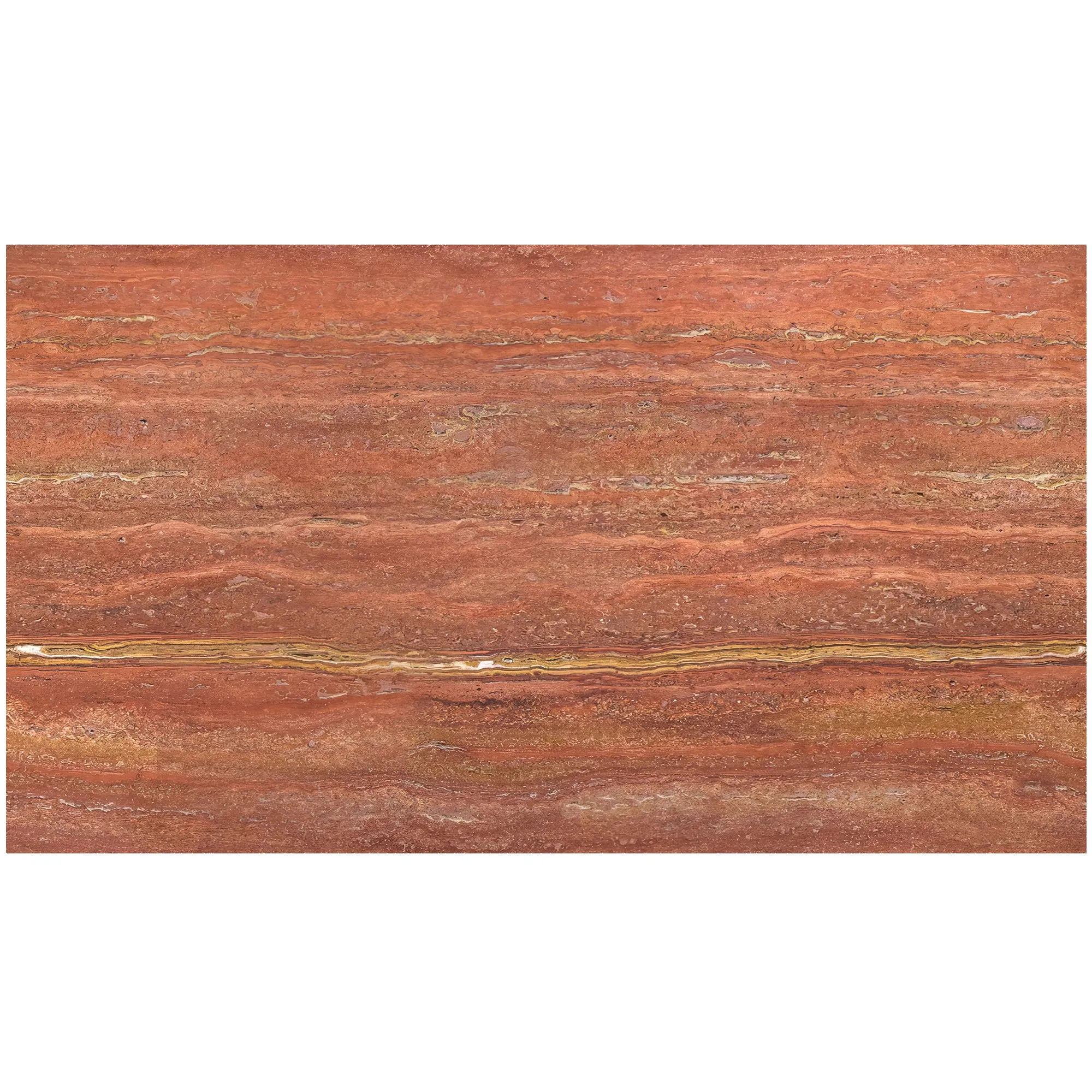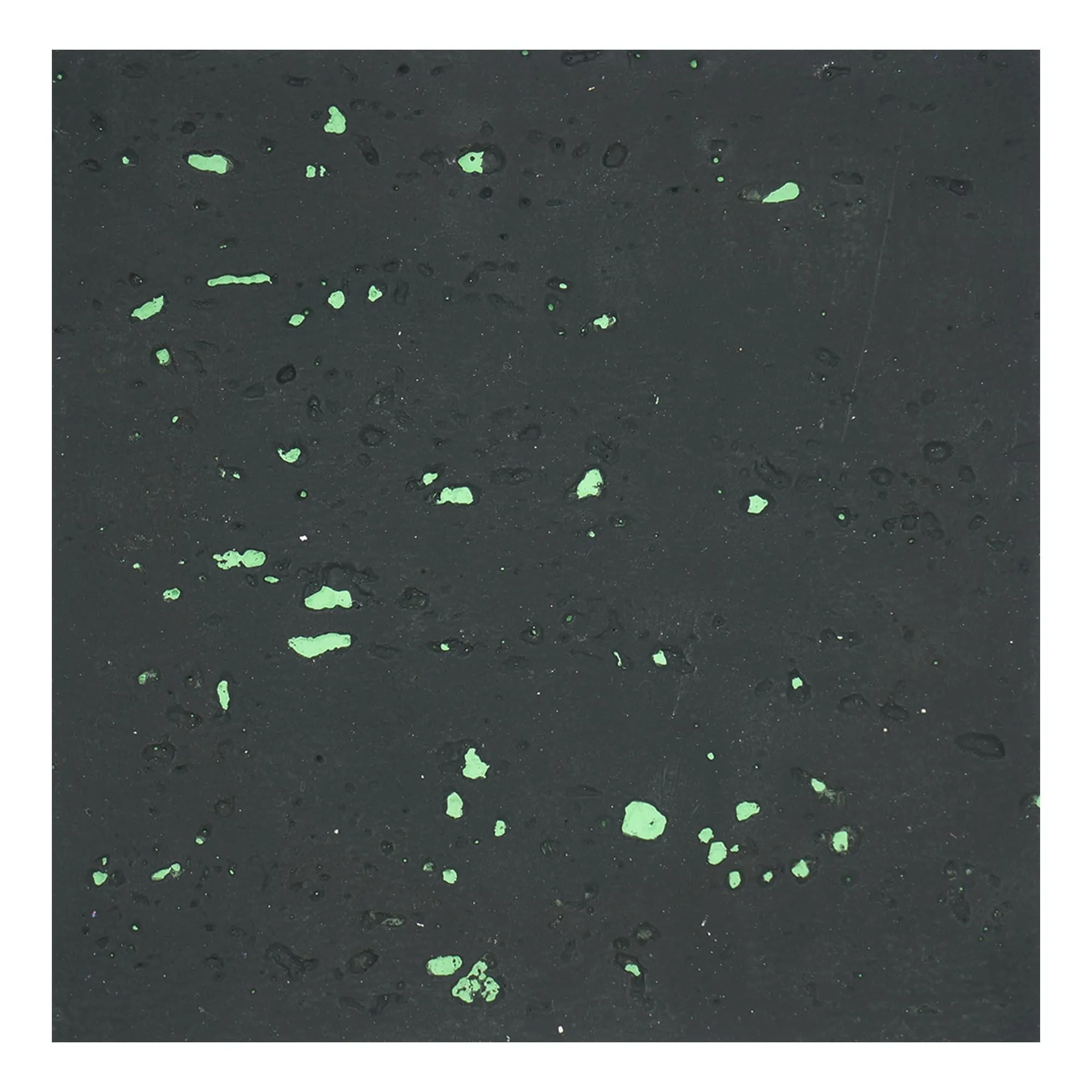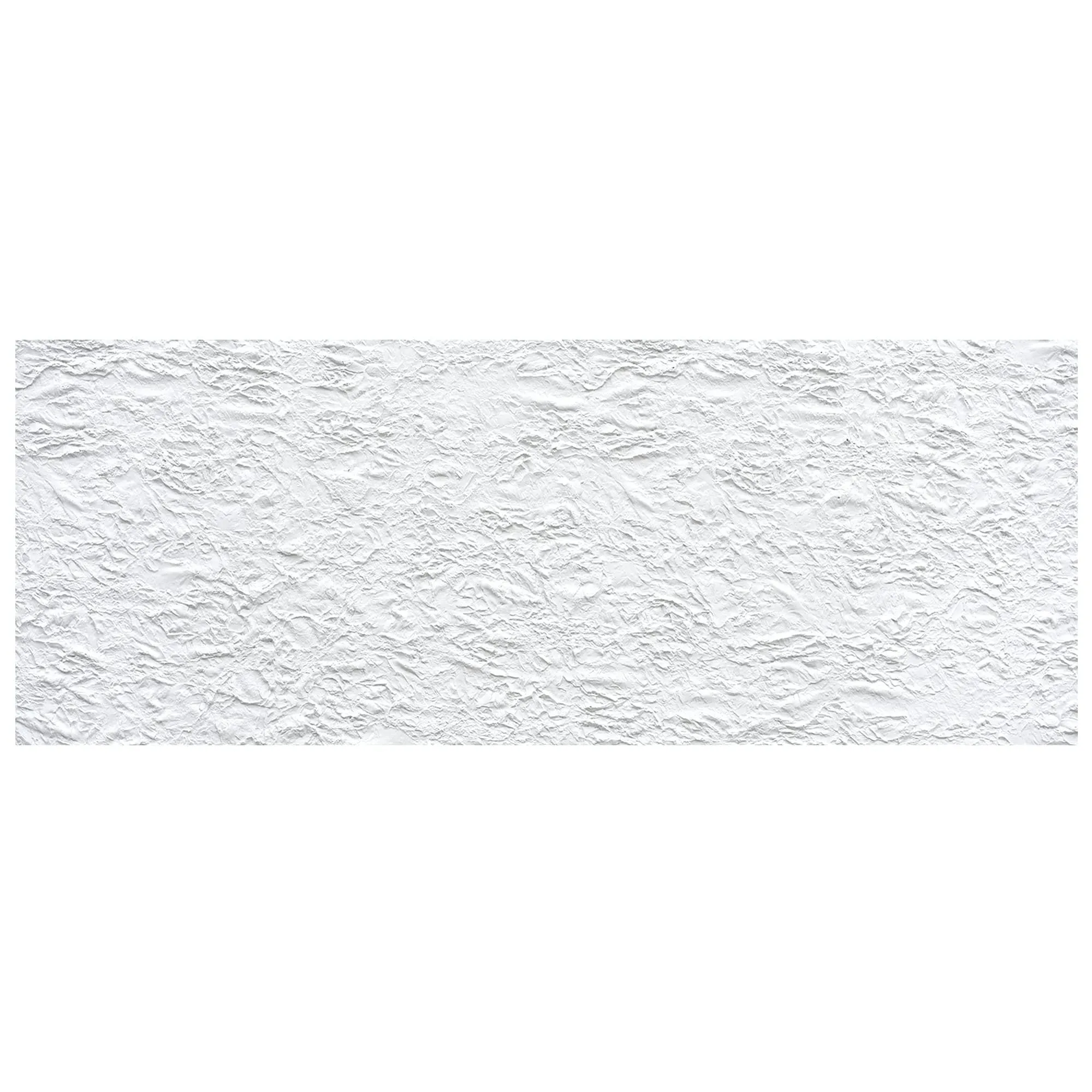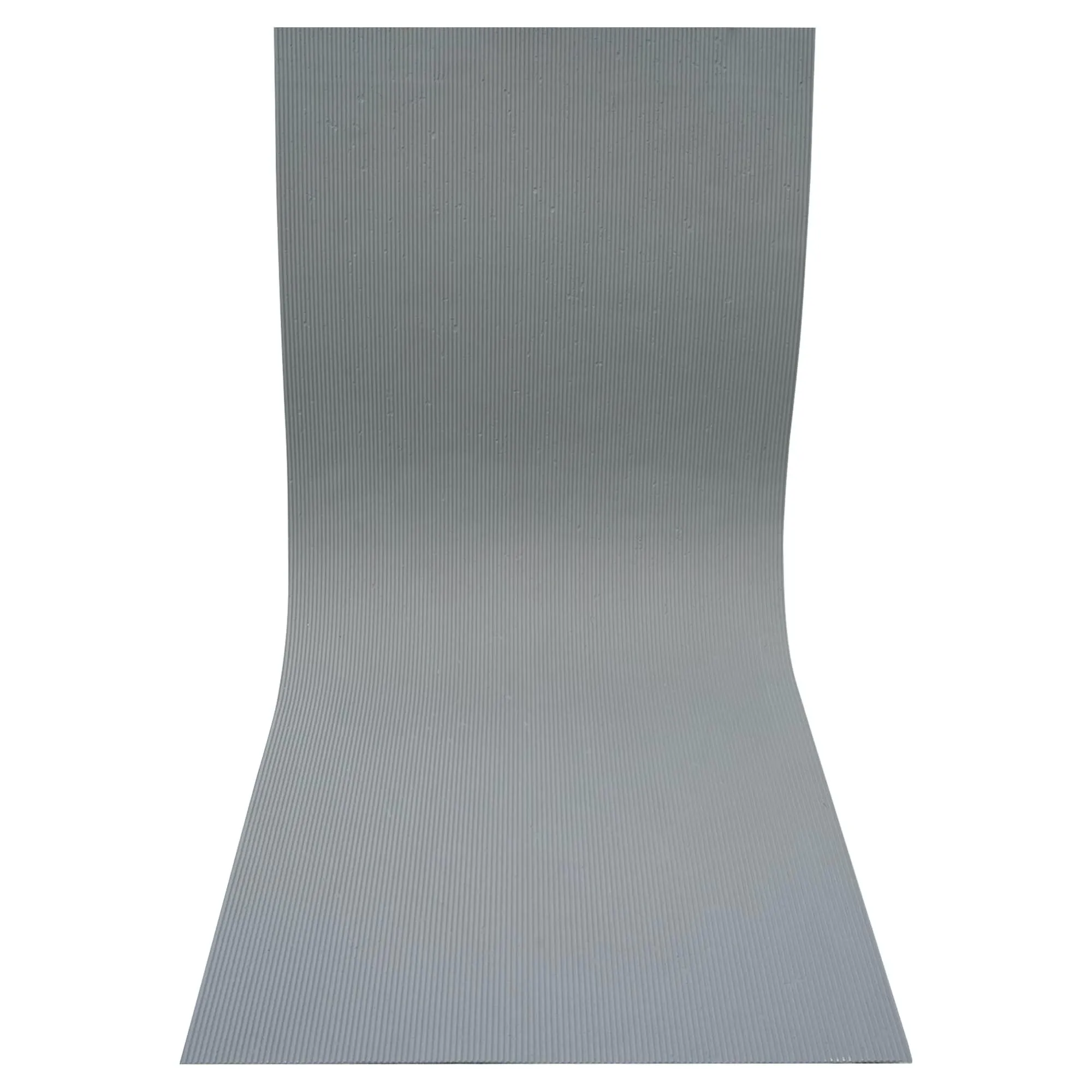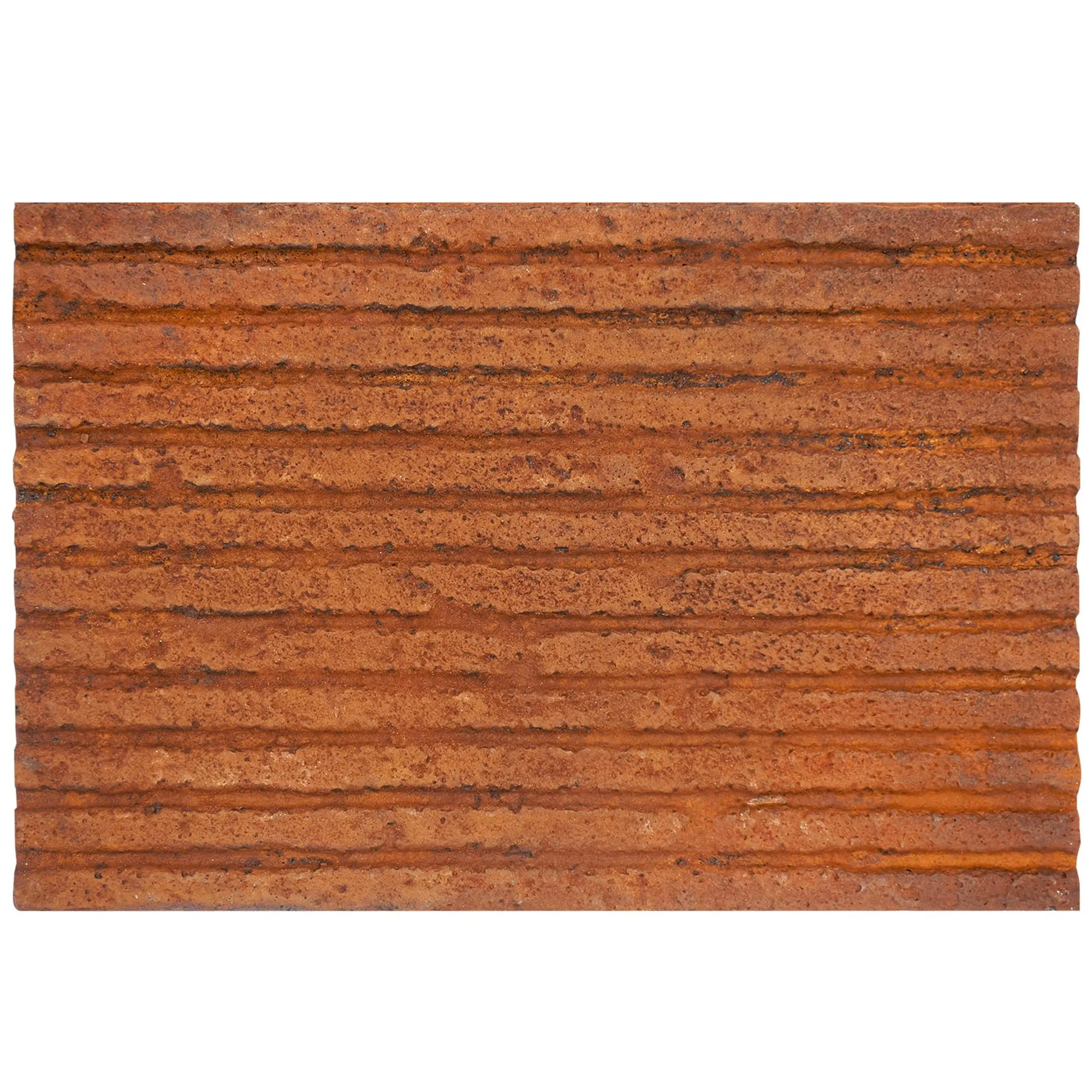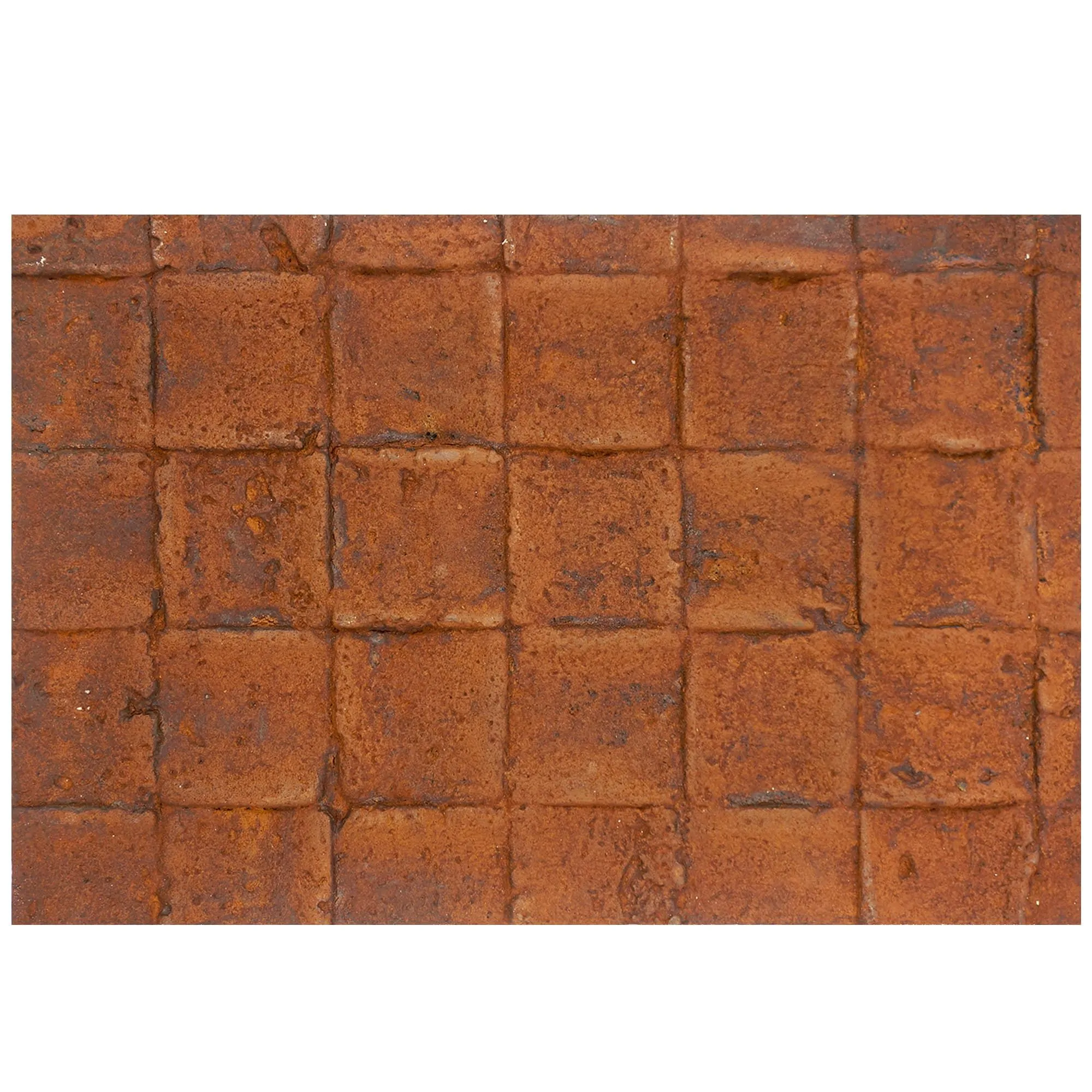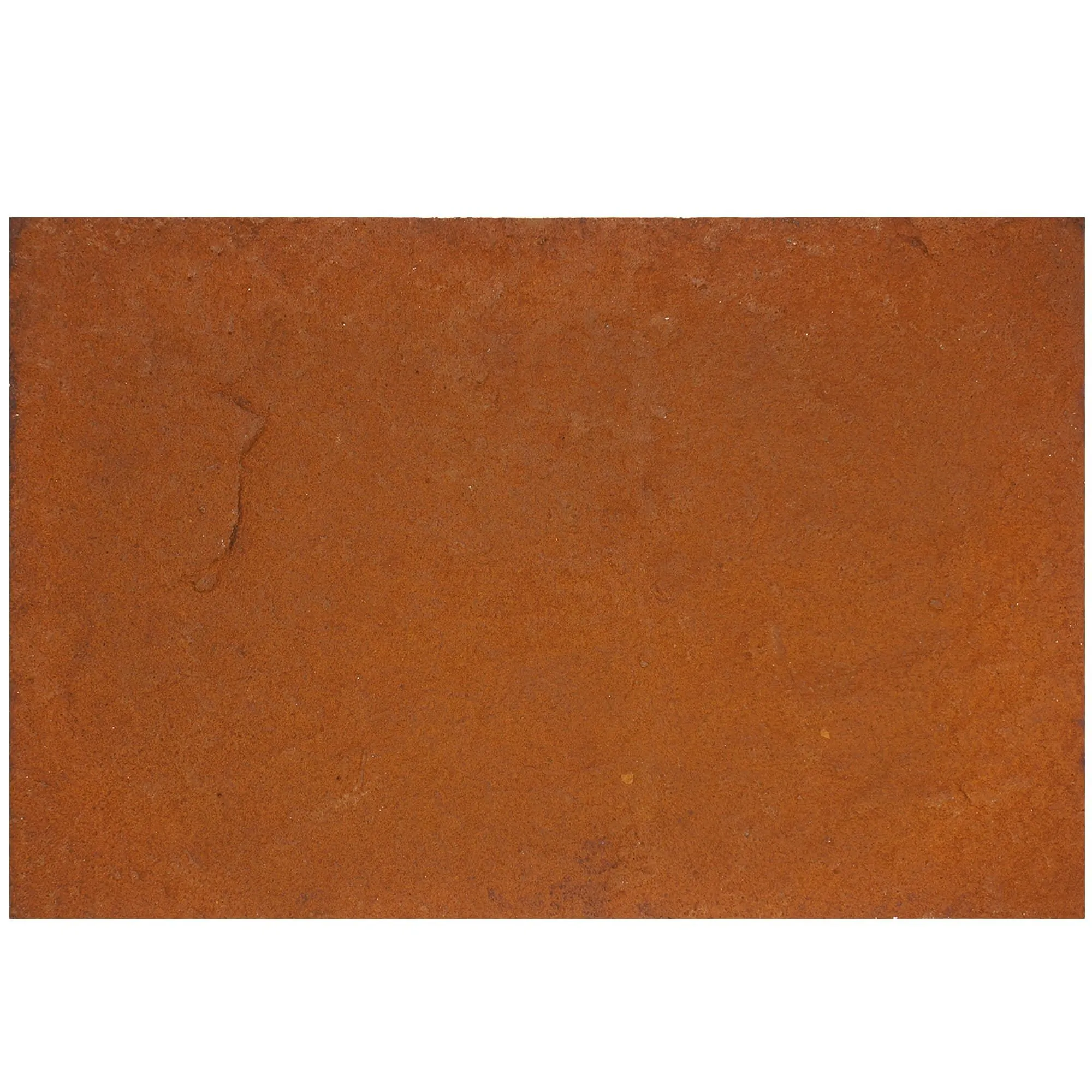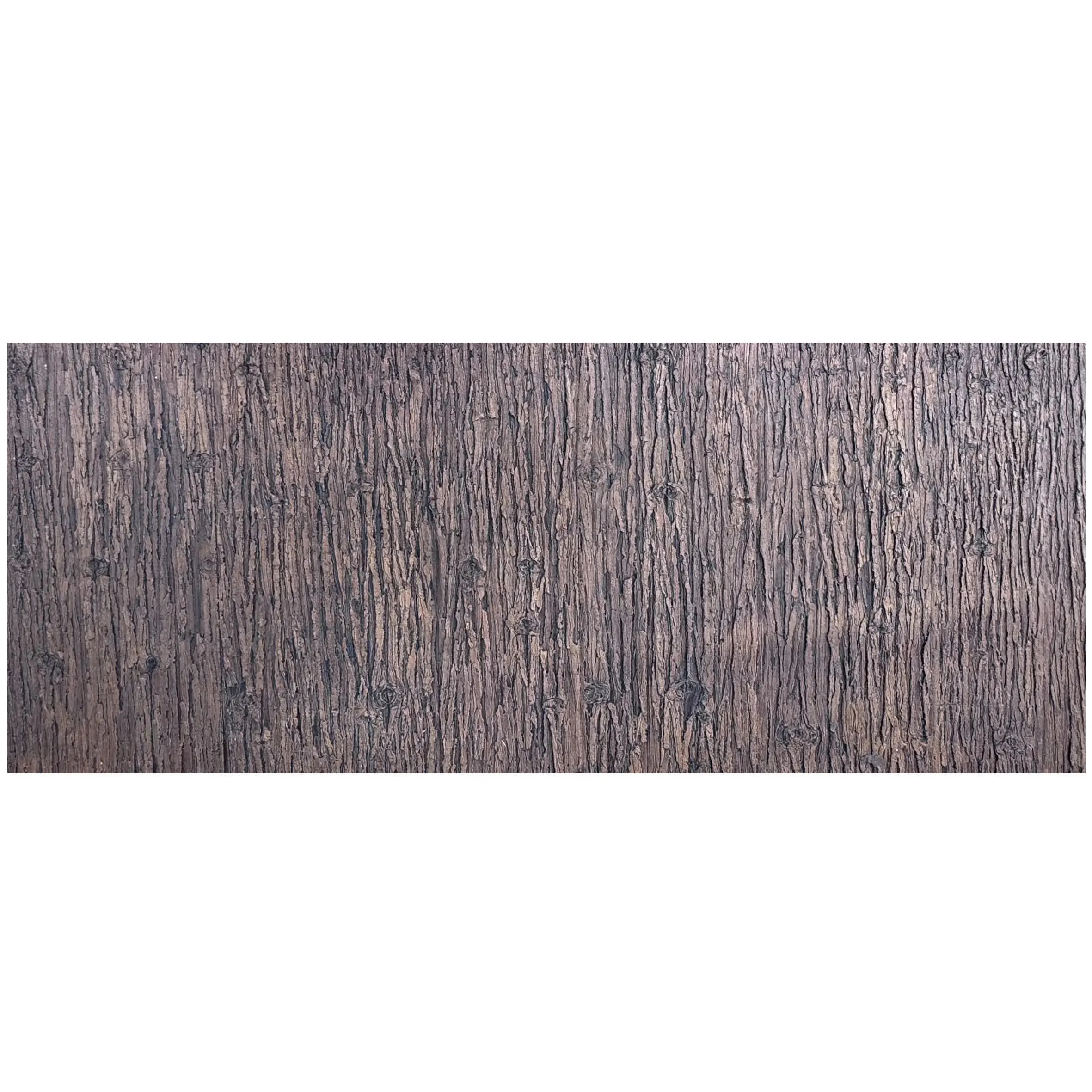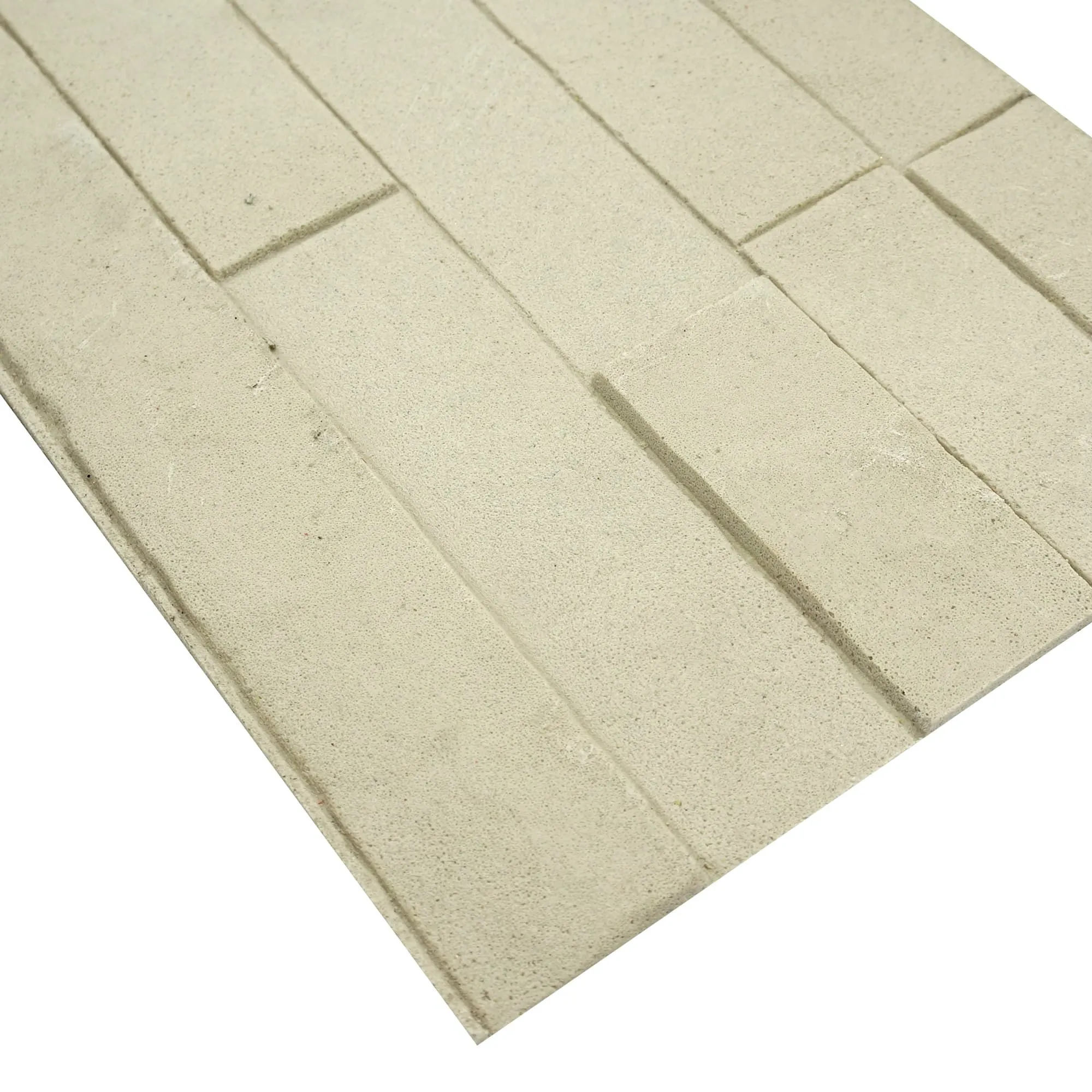
In the world of architectural design, materials aren't just building blocks—they're storytellers. They breathe life into spaces, evoke emotions, and bridge the gap between function and art. Among the rising stars of modern materiality is rust board (medium plaid) —a finish that marries industrial grit with a subtle, rhythmic pattern, like the worn fabric of a well-loved work jacket. Its warm, oxidized tones and tactile plaid texture add depth to everything from urban lofts to rural retreats, making it a favorite for architects seeking to balance edge and warmth. But to truly unlock its potential, you need more than just an eye for aesthetics; you need to master how to translate its character into CAD. Let's dive into practical, actionable tips to help you design with rust board (medium plaid) in CAD like a pro—so your digital models feel as alive and authentic as the finished spaces will.
Rust board (medium plaid) isn't just a pretty face—it has a personality shaped by its physical properties, and your CAD model needs to reflect that. Unlike smooth concrete or uniform marble, this material has nuances: its rusted surface isn't perfectly consistent (thankfully), with variations in hue from deep amber to soft terracotta, and the medium plaid pattern adds a rhythmic, almost textile-like texture. To avoid flat, unrealistic models, start by inputting accurate material specs into your CAD software.
First, note its density: rust board is durable but not overly heavy, making it suitable for both interior accent walls and exterior cladding (when sealed properly). Inputting its weight per square meter into your CAD's material library ensures structural simulations don't overestimate load—critical for projects like cantilevered feature walls. Next, color variation: instead of using a single "rust red" swatch, use CAD tools like AutoCAD's "Gradient" or Revit's "Color Variance" to mimic real-world inconsistency. Imagine a wall where the top edge fades slightly lighter, as if kissed by more sun, while the bottom has deeper, richer tones—small details that make the model feel lived-in.
And don't forget flexibility. Unlike rigid stone slabs, some rust board variants (especially those paired with
MCM flexible stone
backings) can bend slightly around curves. If you're designing a rounded or a curved facade, adjust your CAD model's material flexibility settings to avoid simulating cracks or stress points that wouldn't occur in reality. Think of it as getting to know a collaborator: the better you understand its quirks, the more naturally it will fit into your design.
The medium plaid pattern is what sets this rust board apart—it's not a random texture, but a deliberate, scaled design that adds order to the chaos of rust. But in CAD, a poorly mapped texture can turn that pattern into a blurry mess, making your model look cheap or unprofessional. The key? High-resolution textures and precise scaling.
Start by sourcing high-quality texture images. Skip generic "rust texture" downloads—instead, use real photos (like those from
rust board real photos
libraries) that capture the actual medium plaid pattern. Look for images with natural lighting to see how shadows play in the crevices of the plaid; this will help with later rendering. Once you have your texture, import it into CAD and scale it to real-world dimensions. The medium plaid pattern typically has a repeat of 15–20 cm—too small, and it looks busy; too large, and it feels disjointed. Use your CAD's "Measure" tool to check: if you're designing a 3m tall wall, the pattern should repeat 15–20 times vertically, not 50 or 5.
For 3D models, take it a step further with
3D printing series
textures. Tools like SketchUp's "3D Warehouse" or Rhino's "SubD" allow you to apply depth to the plaid pattern, so the creases between the "plaid lines" are slightly recessed—just like they would be in real life. Run a quick test render: if the pattern looks pixelated up close or warped around corners, adjust the texture resolution or UV mapping. Remember, the goal isn't perfection—it's authenticity. A little imperfection in the pattern alignment (like a slightly offset repeat) can make the model feel more human, as if crafted by hand rather than a machine.
Rust board (medium plaid) shines brightest when it has good company. Its industrial charm pairs beautifully with materials that add contrast or harmony, and CAD is the perfect place to experiment with these combinations before committing to a physical sample. Let's break down a few winning pairs and how to model them:
| Material Pairing | Aesthetic Vibe | CAD Modeling Tip |
|---|---|---|
| Rust Board (Medium Plaid) + Travertine (Starry Green) | Industrial edge meets organic serenity—think a restaurant wall where warm rust plaid frames cool, mossy-green travertine with subtle star-like pockmarks. | Use CAD's "Layer Manager" to separate the two materials; assign travertine a slightly reflective finish (20% gloss) to make its starry texture pop against the matte rust board. |
| Rust Board (Medium Plaid) + MCM Big Slab Board Series | Bold, modern contrast—rust's texture against the clean, large-format slabs of MCM big slabs (try lunar peak silvery for a sleek, metallic backdrop). | Align the plaid pattern horizontally and the big slabs vertically to create visual rhythm; use "Section Cuts" in CAD to check how light plays off the slab edges against the rust texture. |
| Rust Board (Medium Plaid) + Foamed Aluminium Alloy Board (Vintage Silver) | Industrial chic with a retro twist—think a coffee shop counter where warm rust plaid wraps the base and cool, brushed vintage silver tops it off. | Simulate material thickness: aluminium alloy is thinner (3mm) than rust board (8mm), so adjust CAD extrusion depths to avoid unrealistic overlaps. |
When testing pairs in CAD, don't just look at static models—use walkthrough animations to see how the materials interact in motion. For example, a rust board accent wall next to a fair-faced concrete slab might feel balanced from the front, but a side view could reveal the concrete overwhelming the rust if proportions are off. CAD lets you tweak sizes, textures, and layouts until the pairing feels intentional, not accidental.
Even the most beautiful design falls flat if it's impossible to install. Rust board (medium plaid) is relatively easy to work with, but details like fastening methods, joint spacing, and seam alignment matter—both for function and aesthetics. Use CAD to simulate the installation process, so there are no surprises on-site.
Start with joints: unlike seamless materials like
polish concrete
, rust board panels have visible seams. In CAD, model these joints as 3–5mm gaps (adjust based on panel size) and decide if they'll be filled with matching caulk or left open for a raw look. If leaving them open, use CAD's "Edge Chamfer" tool to soften the panel edges slightly—sharp, 90-degree corners in the model can look harsh compared to real-world, slightly weathered edges.
Fasteners are another detail: will you use visible bolts (for an industrial look) or hidden clips? If visible, model the bolts in CAD as small cylinders (8mm diameter) spaced 30cm apart along the panel edges. Use the "Array" command to replicate them evenly—nothing screams "unprofessional" like misaligned fasteners in a render. For exterior projects, simulate drainage: rust board can trap moisture if not sloped, so add a 2-degree angle to your CAD model's cladding panels and include weep holes at the base. It's a tiny detail, but clients will notice the thoughtfulness—and contractors will thank you for avoiding water damage.
Rust board (medium plaid) thrives in good light. Its texture—those subtle plaid lines and rusted crevices—comes alive when hit by warm, directional light, and CAD rendering is your chance to showcase that. Avoid flat, overhead lighting in renders; instead, use these tricks to make the texture pop:
-
Side Lighting:
Position a 3000K (warm white) light source at a 45-degree angle to the rust board surface in your CAD renderer (V-Ray or Enscape work great for this). This creates shadows in the plaid grooves, emphasizing depth. For a morning vibe, angle the light from the top-left; for evening, top-right—mimicking natural sun paths.
-
Contrast with Cool Accent Lights:
Pair warm side lighting with a cool (5000K) accent light behind a
lunar peak silvery
shelf or panel. The cool light will make the rust board's amber tones feel richer by comparison, like a campfire against a starry sky.
-
Reflective Surfaces:
Add a polished concrete floor or a metal table in your CAD scene. The reflection of the rust board's plaid pattern in these surfaces adds layers of visual interest, making the render feel more immersive. Just keep reflections subtle—30% opacity is enough; too much can wash out the texture.
Pro tip: Use real-world reference photos (like
rust board real photos
from manufacturer sites) as a guide for your render settings. If the reference photo shows the rust board glowing softly under warm pendant lights, replicate that in CAD—your client will instantly connect the model to the feeling of the finished space.
Let's put these tips into action with a hypothetical project: a boutique brewery taproom where the client wants an "industrial cabin" vibe. The focal point is a 6m x 4m accent wall behind the bar, featuring rust board (medium plaid) paired with
travertine (starry blue)
and
foamed aluminium alloy board (vintage gold)
for shelving.
Using Tip 1, we input the rust board's density (12kg/m²) to ensure the wall's frame can support it. For Tip 2, we import a high-res plaid texture, scale it to 18cm repeats, and add 3D depth with Rhino's SubD tool. Tip 3 guides the pairing: the starry blue travertine adds cool contrast, so we model it with 15% gloss and place it in 1m x 1m panels between rust board sections. The vintage gold aluminium shelves are modeled with a 5mm thickness and positioned to cast soft shadows on the rust board (thank you, Tip 5's side lighting trick). Finally, Tip 4 ensures the rust board panels have 4mm open joints and visible black bolts (spaced 35cm apart) for that industrial cabin feel.
The result? A CAD model that doesn't just show materials—it tells a story: of warmth, craftsmanship, and the kind of space where people will linger, drawn in by the textures and light. And when the client sees it, they won't just approve the design—they'll feel it.
Designing with rust board (medium plaid) in CAD isn't about mastering every tool—it's about honoring the material's character while solving practical problems. It's about making sure your digital model feels as authentic as the rusted, textured surface will in real life. By understanding its properties, nailing the texture, pairing it thoughtfully, simulating installation, and lighting it right, you'll create CAD models that don't just communicate design intent—they inspire.
So go ahead: experiment with those material pairings, tweak the texture scaling, and let the rust board's personality shine through. After all, the best designs aren't just built—they're felt. And with these tips, your rust board (medium plaid) projects will feel like more than just spaces; they'll feel like stories waiting to be lived in.
Recommend Products