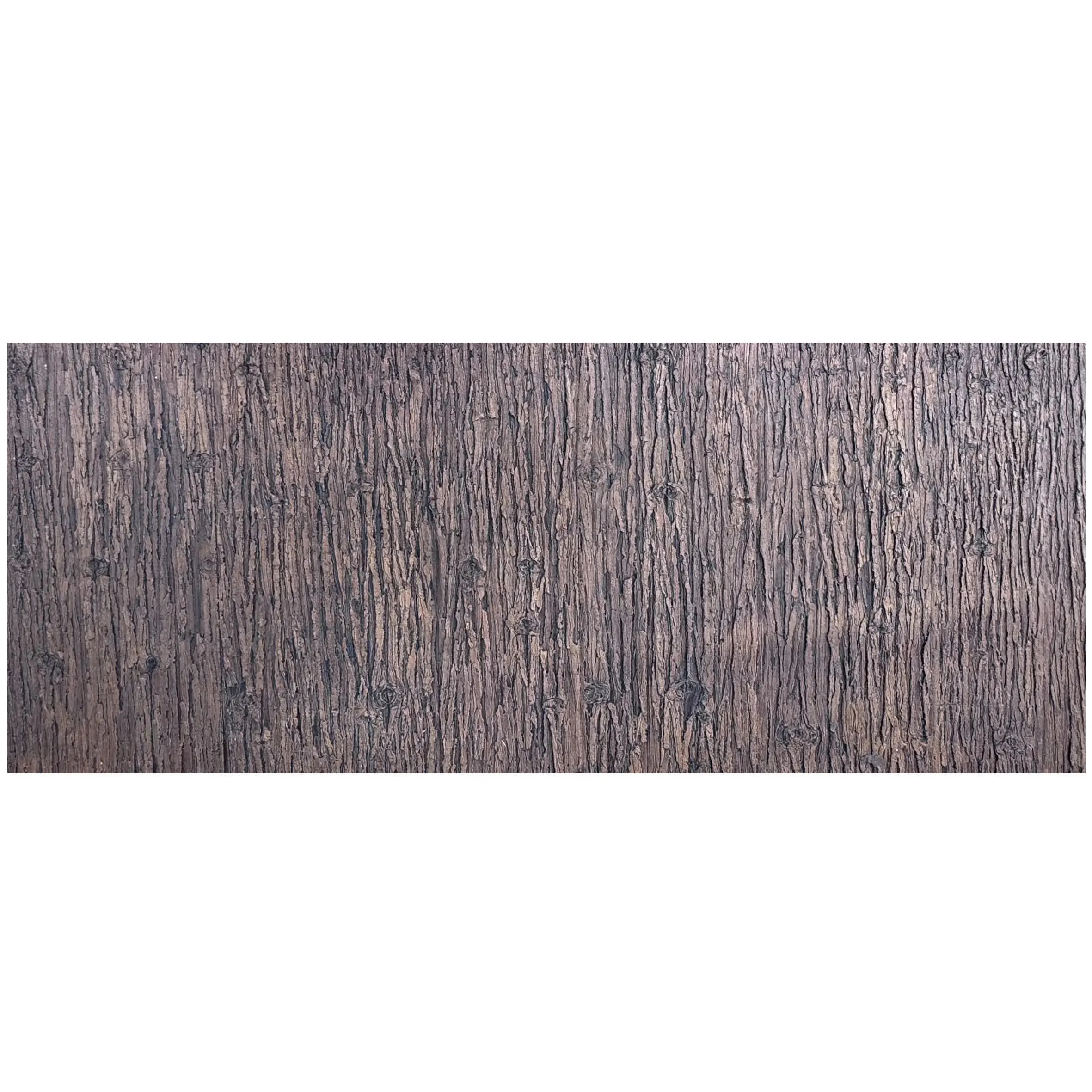
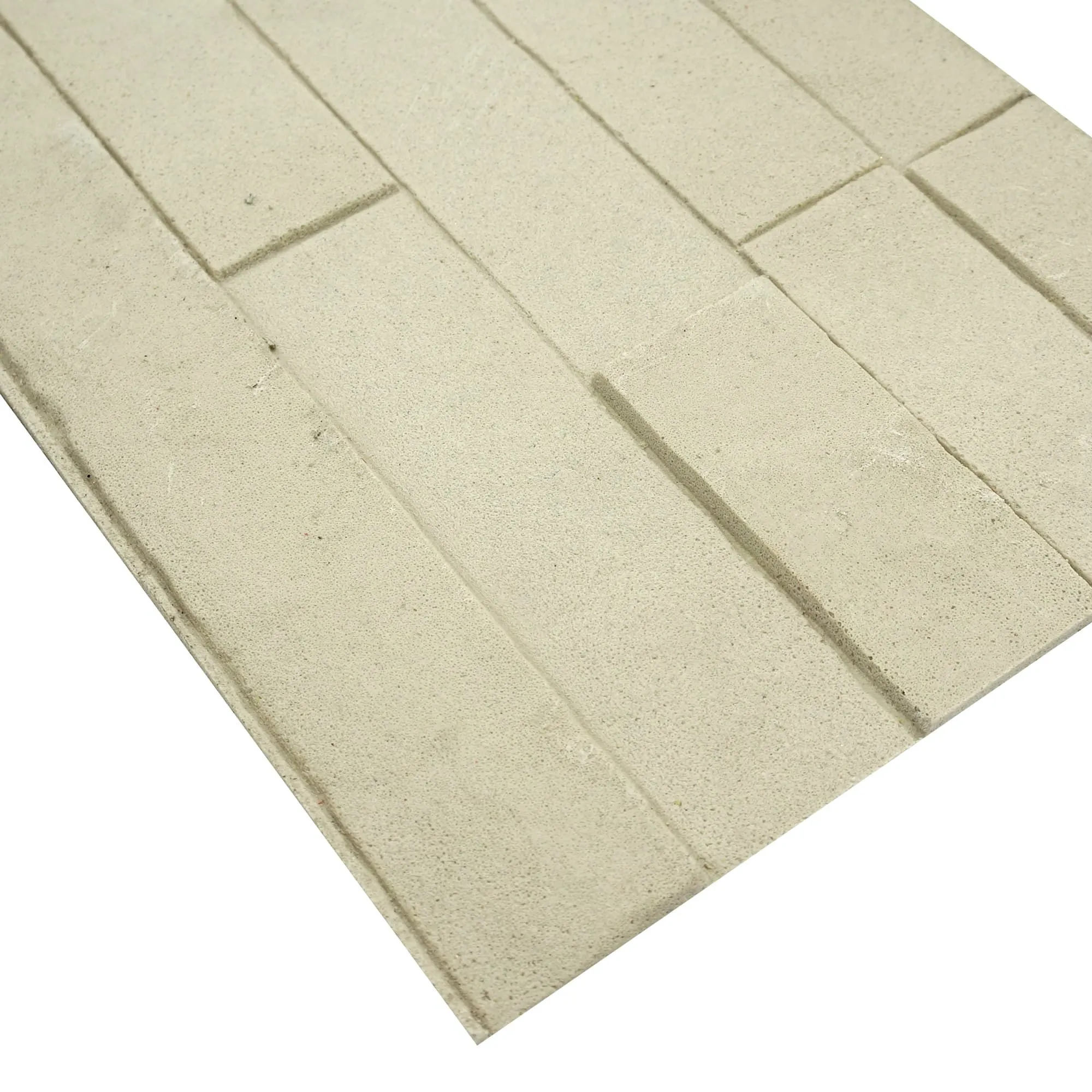
Imagine logging into a platform where you can upload your building's blueprint, drag-and-drop MCM materials onto the facade, and instantly see a hyper-realistic 3D model—complete with high-resolution photos of the actual materials you'll use. That's Ridged Stone Design Software in action. Here's a step-by-step look at the process:
1. Upload Your Project & Define Parameters
Start by importing your CAD files, BIM models, or even a simple 2D sketch. The software auto-generates a 3D shell of your project, whether it's a commercial office tower, a residential home, or a retail space. You set the dimensions, orientations, and environmental factors (like sunlight angles or surrounding landscapes) to ensure the model reflects real-world conditions.
2. Choose Your MCM Materials—With Real Photos, Not Renderings
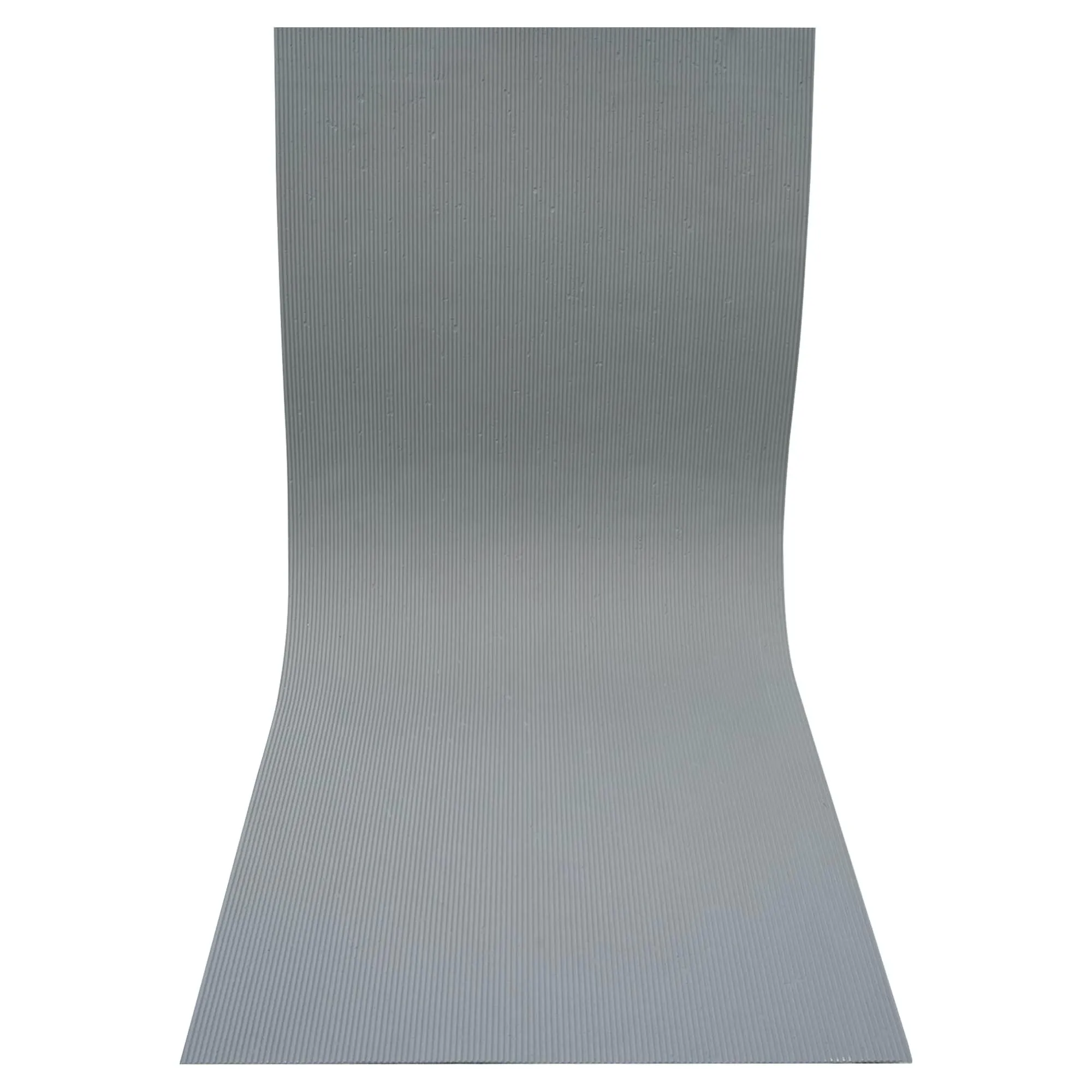
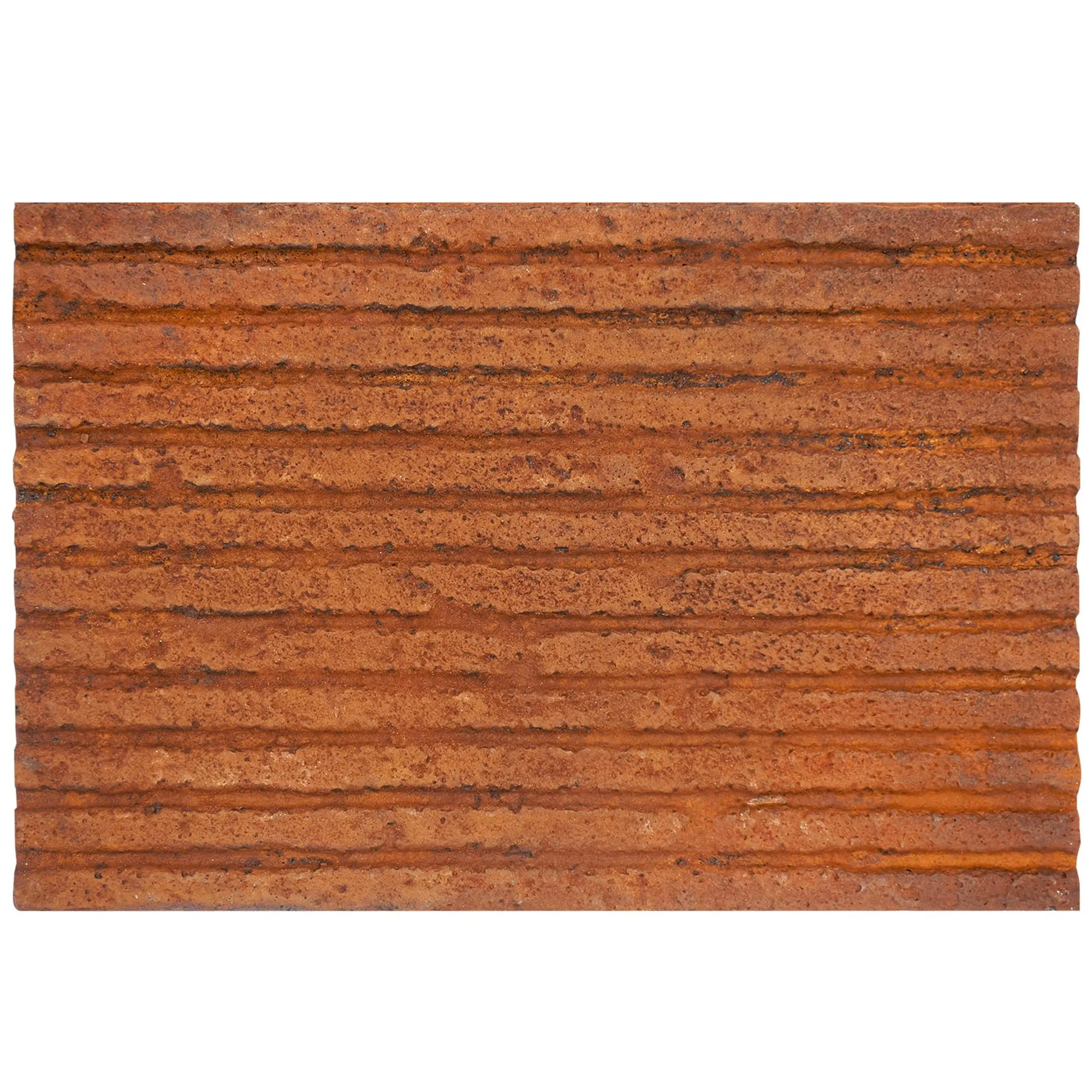
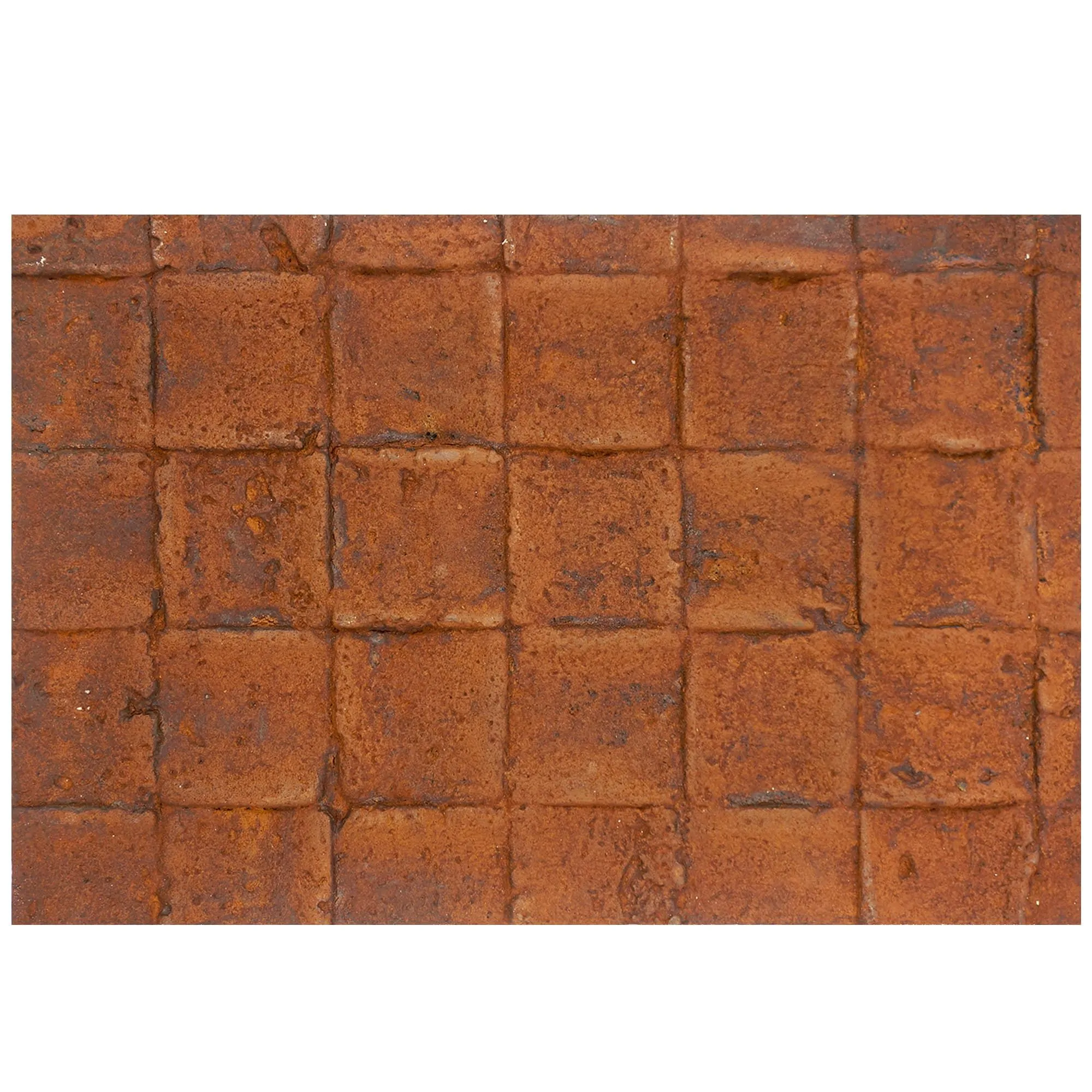
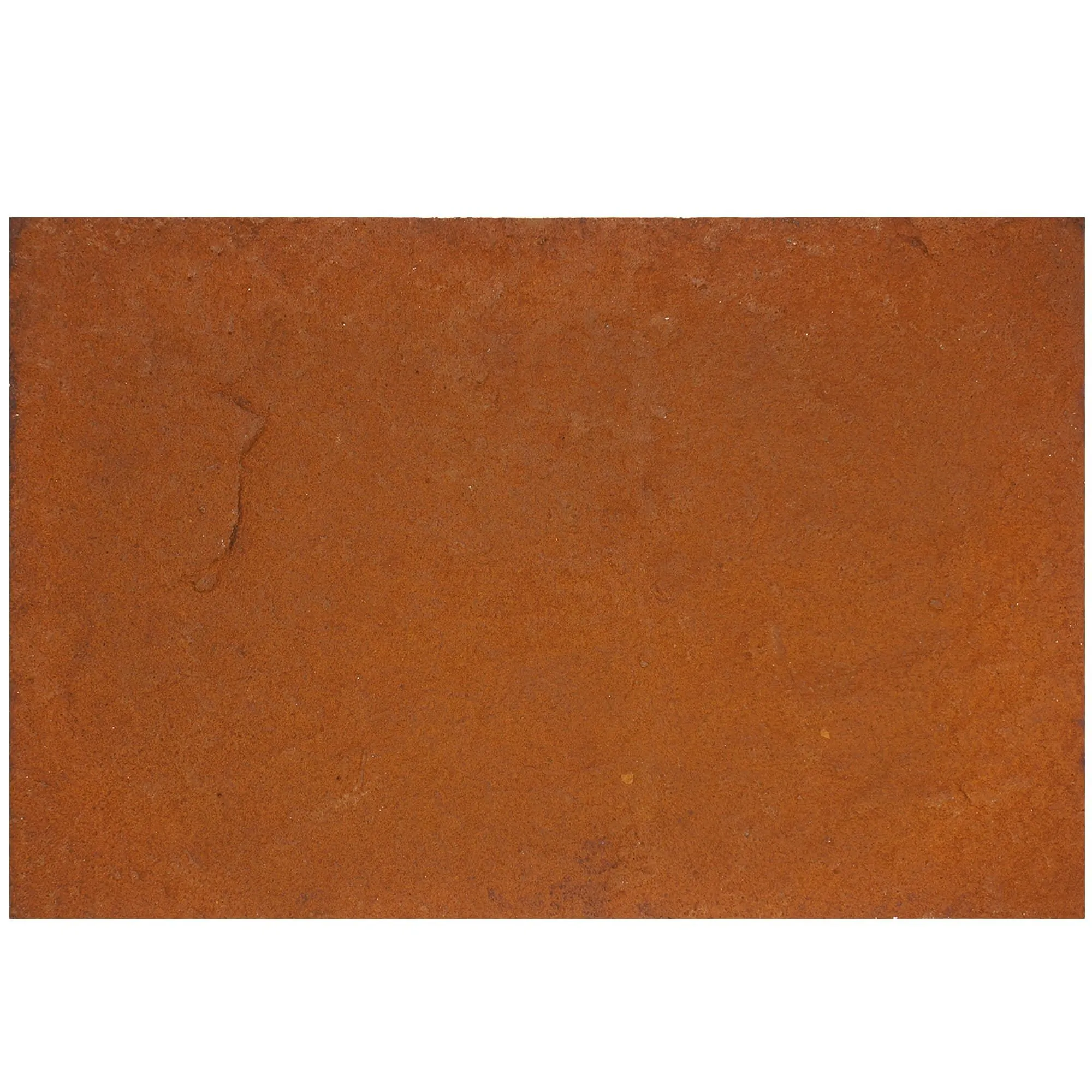
This is where the magic happens. Instead of scrolling through generic "stone" or "metal" options, you browse a library of
MCM flexible stone
and composite materials—each paired with high-resolution, 1:1 scale photos of the actual product. Want to see how
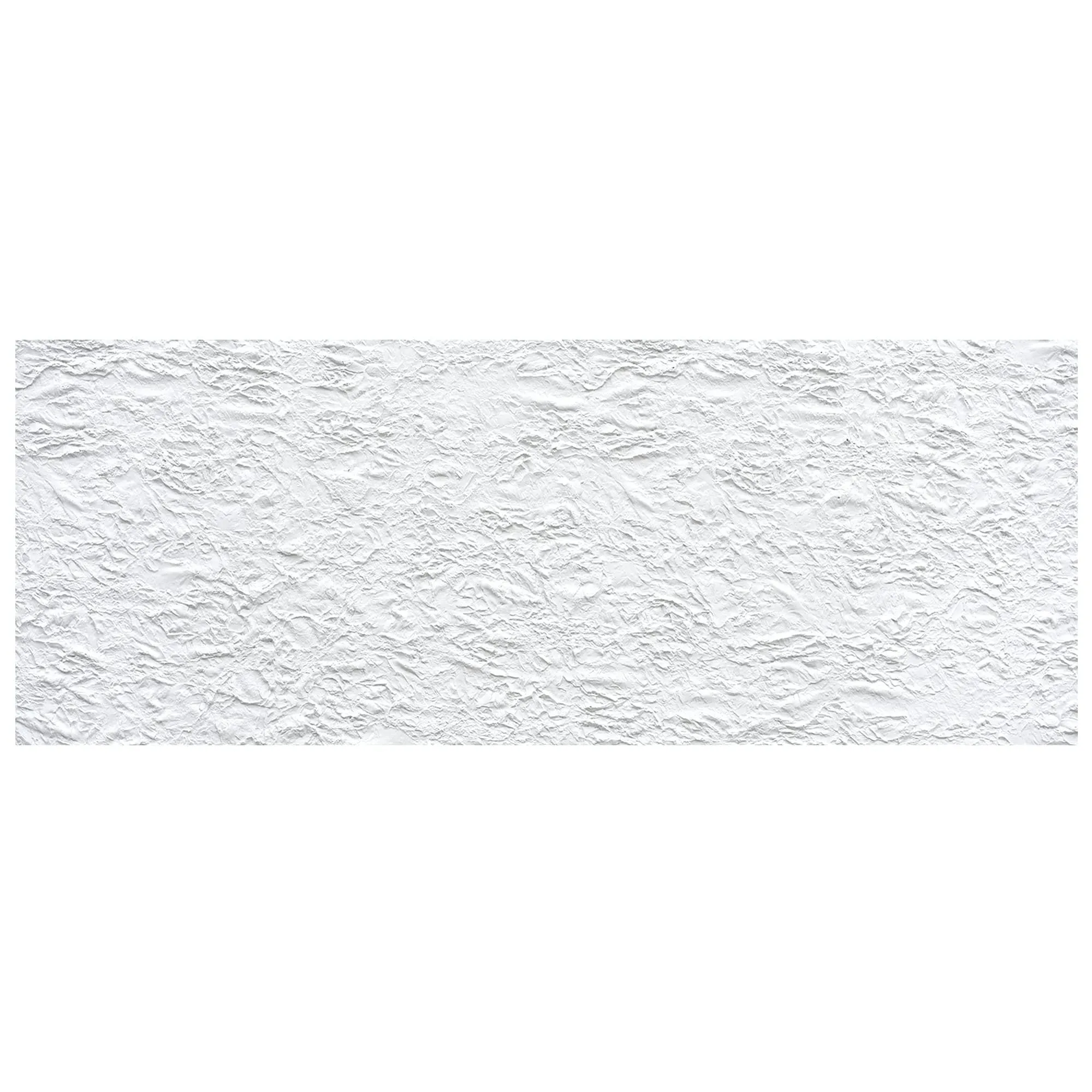
ridged stone
panels will look next to
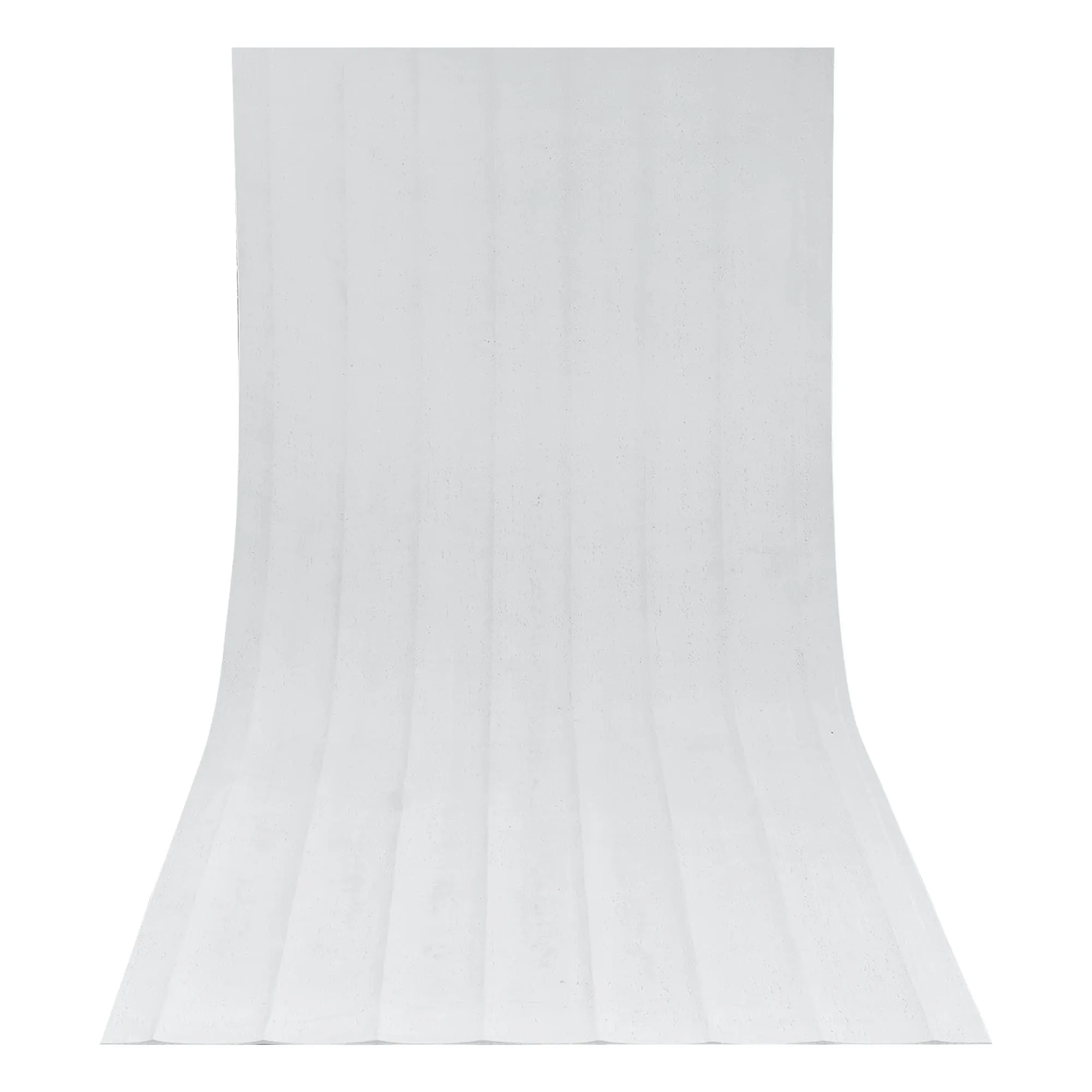
foamed aluminium alloy board (vintage silver)
? Click, drag, and drop. Curious about the contrast between
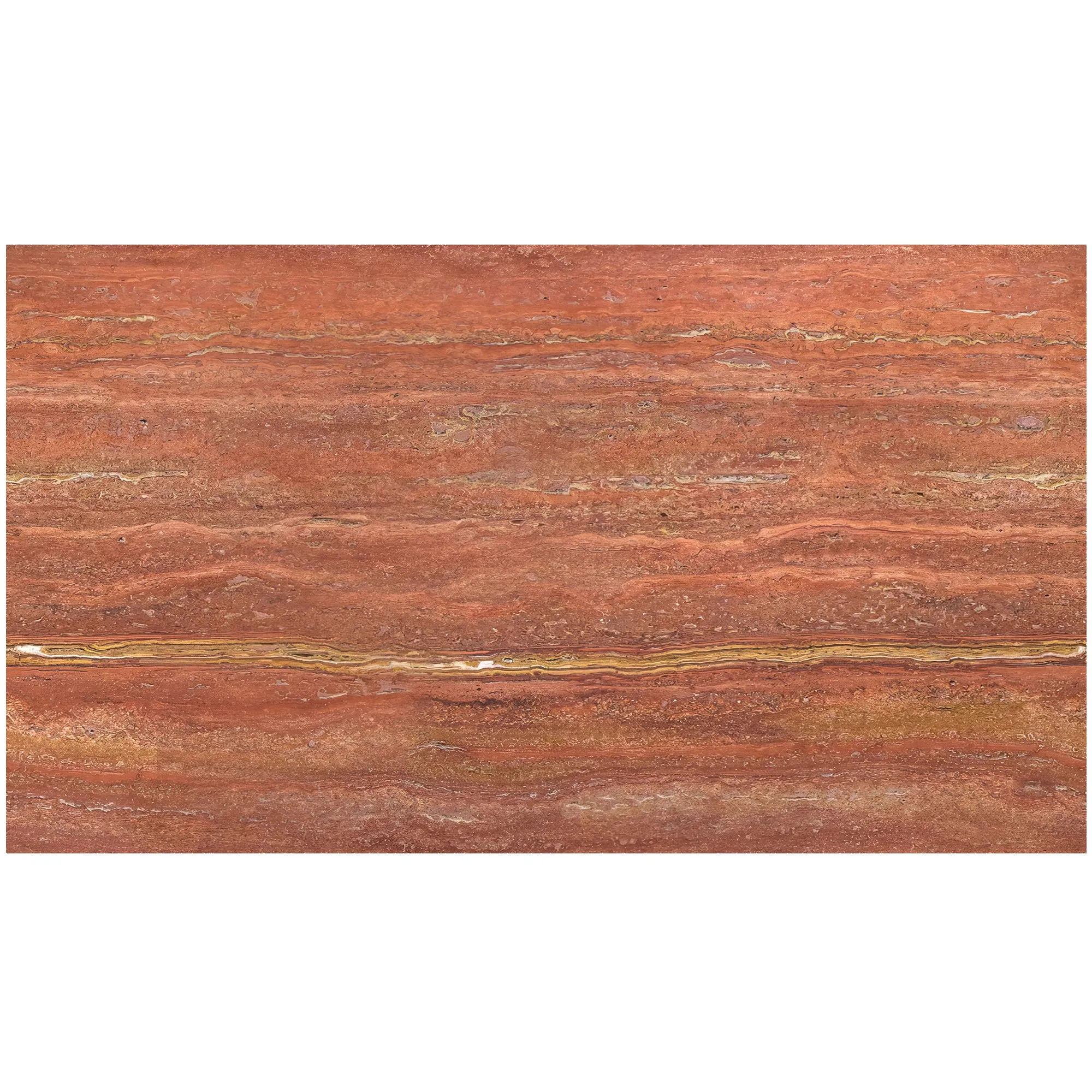
travertine (starry blue)
and
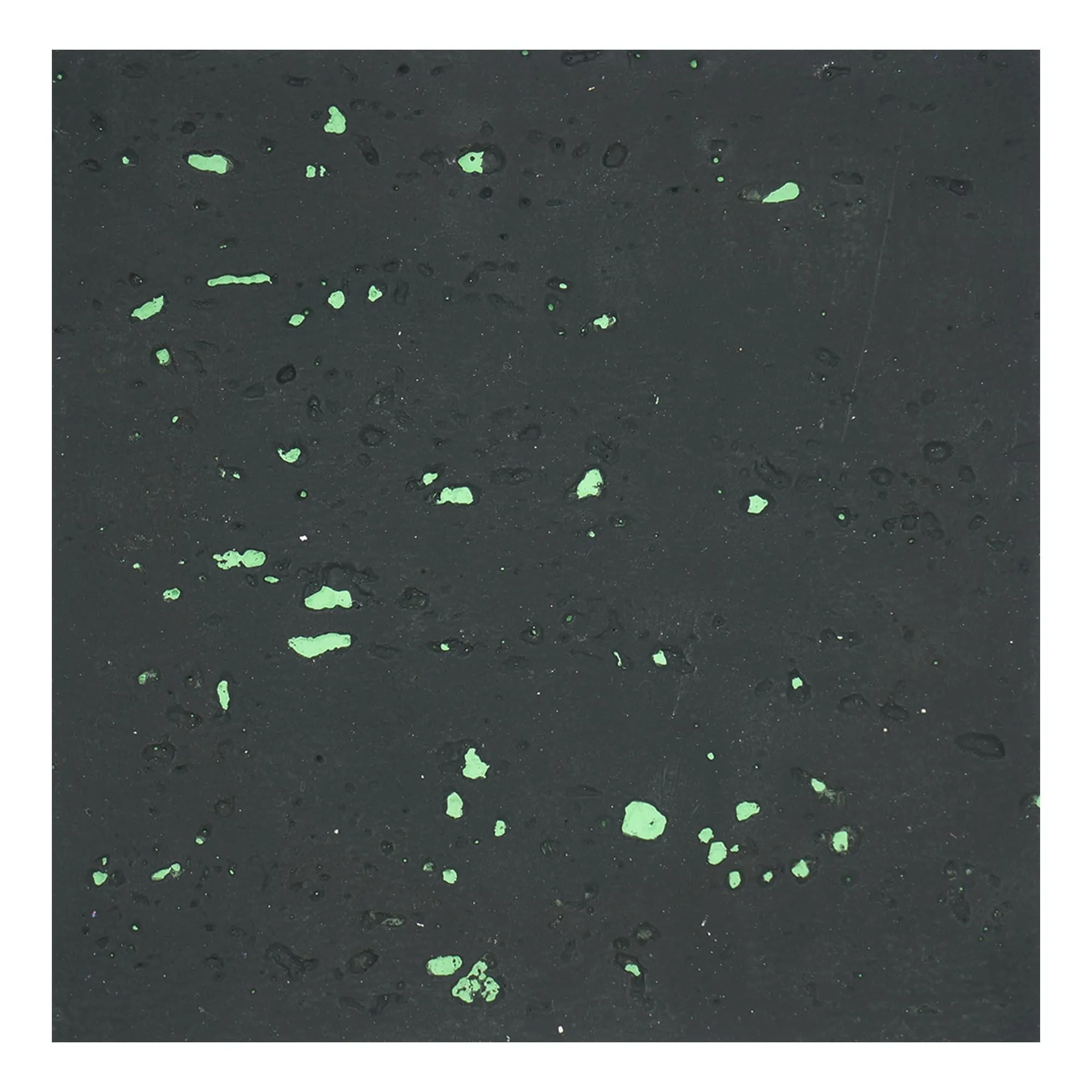
lunar peak black
on a corner facade? The software overlays the real material photos onto the 3D model, capturing every nuance: the way light hits the ridged texture, the subtle color variations in the travertine, even the slight sheen of the aluminium alloy.
3. Customize Every Detail (Because "One-Size-Fits-All" Doesn't Exist in Design)
MCM products thrive on customization, and the software leans into that. Need
custom MCM exterior panels
with a unique ridged pattern for a luxury resort? Adjust the ridge depth, spacing, and color in real time. Want to mix
lightweight flexible stone sheets
with woven textures for a hospitality project? The software lets you tweak proportions, layer materials, and even simulate weathering (like how the stone might patina over time) to ensure the design holds up aesthetically for years to come.
4. Generate Real-Photo 3D Models & Share Instantly
Once your design is dialed in, hit "render." In minutes, the software produces a 3D model so realistic, it's nearly indistinguishable from a photo of the finished building. These aren't CGI renderings—they're composites of your 3D structure and actual photos of the MCM materials, ensuring clients see exactly what they'll get. Share the model via link, embed it in presentations, or even walk clients through a virtual tour where they can zoom in to inspect the ridged stone's texture or the weave of a bamboo mat board panel.